How do I set up a password protected relationship page
Want a private, beautiful page to share love notes, photos and songs—only for them? This step-by-step guide shows exactly how to set up a password protected relationship page, choose a strong password, share it securely, and test it so your surprise stays private.
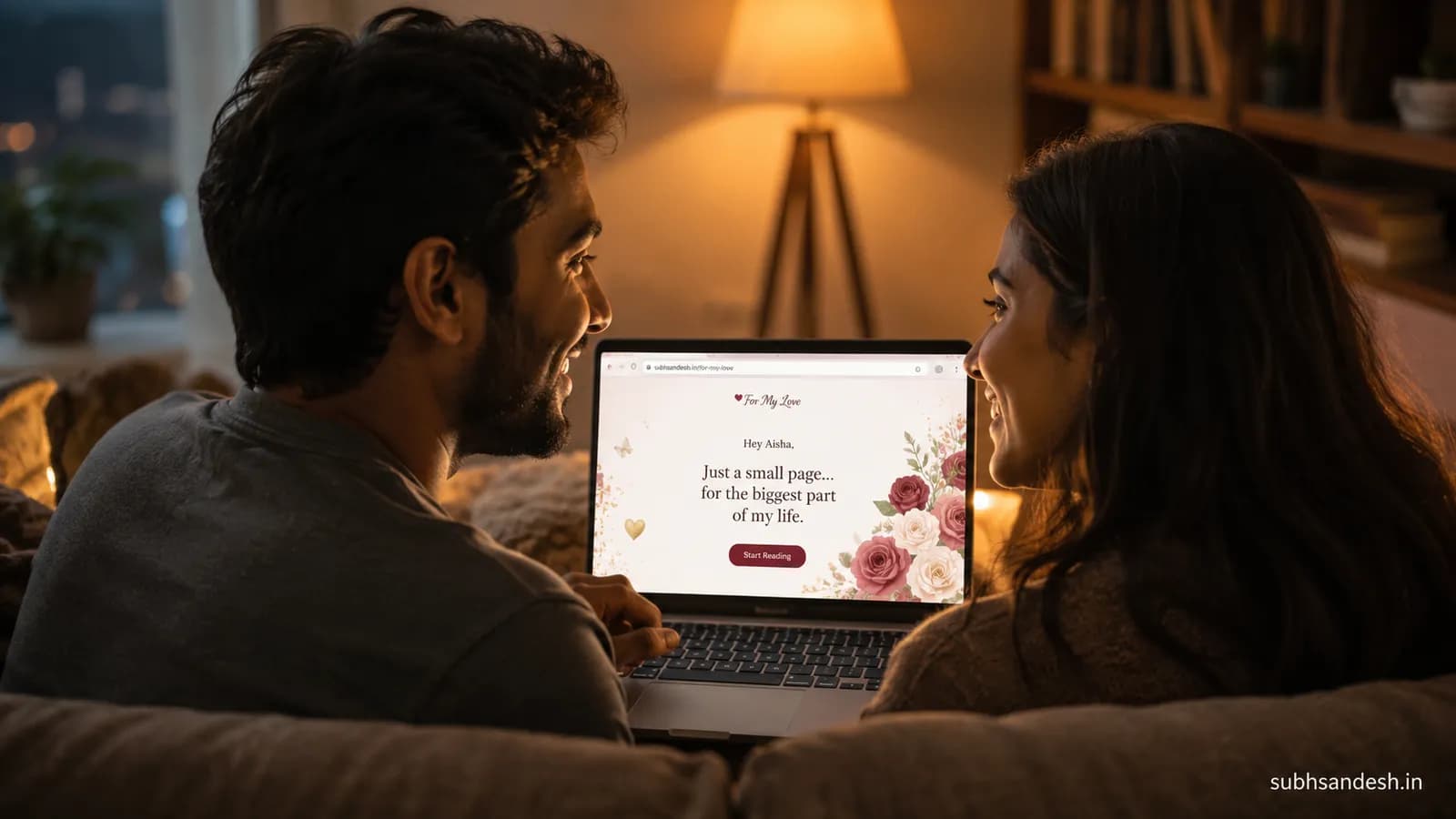
Make this into a page you can send
Photos, a message, music and a ready-to-share link — in a couple of minutes.
Create nowor browse all occasionsKey takeaways
- • You can password protect a relationship page by enabling a page-lock option when publishing and sharing a single secret password with the intended person.
- • Use a unique, 10+ character password that mixes words and numbers or a short passphrase; avoid obvious dates or pet names.
- • Share the password over a different channel than the page link (e.g., link by SMS, password by voice) to reduce interception risk.
- • Always test the page in a private browser or on a different device before sending it; confirm the lock and that media loads correctly.
- • SubhSandesh provides ready-made romantic templates and simple publish controls so you can build and password-protect a page in minutes.
On this page
- Why use a password-protected page?
- What you’ll need before you begin
- Step-by-step: Create and lock your relationship page
- A quick checklist before you press send
- Password best practices (short, practical advice)
- How to share the link and password safely
- Examples of occasions and recommended templates
- Comparison table: password options and when to use them
- Troubleshooting common problems
- Privacy considerations you should know
- Small creative ideas to make the locked reveal special
- Why SubhSandesh makes this easy
- Final check and soft call to action
Answer first: Yes—you can set up a password protected relationship page so only the person you choose can open it. This guide shows a clear, step-by-step method to create the page, add a password, test access, and share the secret safely.
How do I set up a password protected relationship page?
Password-protecting a relationship page is a three-part process: pick a template and build the page, enable the page-lock and set a password, then test and share it securely. Below you’ll find exact steps, password tips, sharing strategies, and troubleshooting advice so your surprise stays private and emotional.
Why use a password-protected page?
A locked page keeps a surprise private until the reveal. People use password protection for:
- Proposals and will-you-be moments.
- Anniversary surprises or private photo albums.
- Intimate messages or apologies that shouldn’t land in a group chat.
- Invitations for only close friends or family.
Privacy also adds to the excitement: opening the page becomes a moment, not just a link click.
What you’ll need before you begin
- A short list of 6–12 photos or a single video you want to share.
- A heartfelt message or a short script for voice/video.
- A simple, unique password or passphrase.
- A target share plan (who gets the link, how you’ll communicate the password).
If you want a romantic starting template, try the love page for a girlfriend/partner or an anniversary page. Browse all layouts at SubhSandesh templates.
Step-by-step: Create and lock your relationship page
-
Choose a template and open the builder.
- Pick an emotion-first template: romantic, playful, or dramatic. Templates like the love page are designed for intimate messages and mobile-first viewing.
-
Add your photos, message, and music.
- Upload clear, well-lit photos and trim video clips to 10–30 seconds. Keep one strong opener (a single photo or line) so the reveal lands instantly.
-
Design the flow and preview on mobile.
- Rearrange sections so the emotional high point appears near the middle or end. Preview on your phone to verify fonts, spacing, and autoplay audio.
-
Find the publish or share settings and enable password protection.
- Look for a "Page Lock" or "Require Password" toggle in publish controls. Choose the password field and enter your chosen secret. (SubhSandesh’s publish settings make this simple and visible at the final step.)
-
Save and publish as a private page.
- Publishing creates a single shareable link. The password gate will appear to anyone who opens it unless they have the password.
-
Test the page on another device or in an incognito window.
- Copy the link and open it on a phone where you aren’t logged in or use a private browser tab. Confirm the password prompt appears and that the content loads when you enter it.
-
Choose how you’ll deliver the link and the password.
- Send the link by one channel (e.g., SMS or chat) and share the password by another (a phone call or voice note). This prevents accidental link+password exposure.
-
Time the reveal and follow up.
- Decide whether the password expires (you can change or remove it after the reveal) and consider leaving a short message asking them to reply when they’ve opened the page.
A quick checklist before you press send
- Did you test the password? (Yes/No)
- Are images and audio playing correctly on mobile? (Yes/No)
- Is the password unique and at least 10 characters or a two-word passphrase? (Yes/No)
- Is the sharing plan locked down? (Send link on one channel, password on another)
Password best practices (short, practical advice)
- Use a short passphrase: two unrelated words plus a number, e.g., "cinnamon-rocket42".
- Avoid obvious choices: birthdays, nicknames, or the recipient’s name.
- Don’t reuse passwords you use for email or social accounts.
- If you need to remember it, choose a memorable phrase and write it down briefly, then destroy the note after use.
How to share the link and password safely
- Channel split: link by chat or email; password by call or voice note.
- For in-person reveals, reveal the password at the moment you hand over the phone—no digital transmission.
- If sending to a group of trusted people, share the password privately to each person rather than posting in a group.
Examples of occasions and recommended templates
- Proposal or "Will you be mine?": Use an intimate layout such as the love page. Hide the password until you’re ready.
- Anniversary surprise: Build a timeline of your relationship in the anniversary page and lock it for a few days before you both view it.
- Miss-you message after a long trip: A miss-you style page feels personal and gentle behind a password.
Comparison table: password options and when to use them
| Password type | Strength | Best for | When not to use |
|---|---|---|---|
| Short passphrase (two words + number) | High | Most private surprises | When you can’t easily tell someone in person |
| Single word + number | Medium | Quick reveals with low risk | Sensitive content or many viewers |
| Very long random string | Very high | Extremely sensitive material | When memorability matters |
Troubleshooting common problems
Problem: The password prompt doesn’t appear.
- Solution: Re-publish the page or clear cache and test in incognito. Confirm that the page’s publish settings still have the lock enabled.
Problem: Recipient can’t enter the password or gets an error.
- Solution: Confirm there are no extra spaces when typing, try lowercase/uppercase exactly as entered, and reset the password in settings if needed.
Problem: Media won’t load after entering the password.
- Solution: Check file sizes (keep images under 3 MB and videos trimmed). Re-upload media and re-publish.
Privacy considerations you should know
- Password protection prevents casual or automated access but cannot stop a trusted viewer from taking screenshots or forwarding content.
- Never include extremely sensitive personal data that you wouldn’t want preserved long-term.
- If you’re worried about people sharing the password, you can change it after the reveal or remove public access entirely.
Small creative ideas to make the locked reveal special
- Build a short riddle where each line hints at the password; let them solve it at the moment of the reveal.
- Pair the page with a small physical clue: a gift with a tag that contains the password.
- Create a countdown on the page and set the time to your planned reveal—then unlock the page when the countdown ends.
Why SubhSandesh makes this easy
From templates to publish controls, SubhSandesh is designed so you don’t need design or coding skills to create a private, emotional page. Choose a template, add your photos and message, enable page-lock at publish, and test—the whole flow usually takes under 20 minutes.
Final check and soft call to action
Do a final run-through: content, password strength, and the delivery plan. When you’re ready, publish the locked page and keep the moment private until the reveal. Ready to make their day? Create your page in minutes—browse all SubhSandesh templates to start with a romantic layout and enable password protection during publishing.
Frequently Asked Questions
Turn this inspiration into an unforgettable surprise
Build a page with photos, a heartfelt message, music and a ready-to-share link.
- Photos, message & music
- Ready-to-share link

Written by
Suyash Agrahari
Founder
Suyash Agrahari is a Software Engineer at HireQuotient and the founder of SubhSandesh and DrawFlow (drawflow.in). He builds AI agents and full-stack products with Next.js, Node.js, and the OpenAI and LangChain ecosystems, having shipped autonomous multi-agent systems, AI copilots, and large-scale outreach platforms — and scaled side projects from a few hundred to millions of users. He writes about AI engineering, web development, and building products that grow through SEO and organic reach.
Stay Connected
Follow SubhSandesh
New templates, festival ideas and step-by-step walkthrough videos — first on our socials.
Keep reading
Which Day Comes After Propose Day, and What Happens Now
Chocolate Day comes after Propose Day — Tuesday 9 February 2027. That is one sentence, so this page covers the four situations you are actually in on …
 Suyash Agrahari· 9 min
When to Propose a Girl to Be Your Girlfriend, and When Not To
The timing question, answered with conditions instead of a date: what has to be true before you ask, what politeness and fast replies do not prove, wh…
Suyash Agrahari· 9 minRomantic Proposal Room Decoration: What the Room Must Do
Romantic proposal room decoration, sorted by the work each setup takes and what the room allows: 7 setups with set-up and reversal times, lighting evi…
Suyash Agrahari· 9 min