

🌹 Product guide
Build the Darling page — six rooms she can wander
Darling is not a page she scrolls once. It is a dark little world with its own rail — Home, Wish, Photos, Music, Games, Notes — and she moves around it herself. You fill it through a nine-page wizard: the message, the wish card, her photos, a quiz you write, and truth-or-dare. This guide walks every page and then every room she sees.
Watch
The whole build, end to end
This recording has no voiceover — every action is labelled on screen as it happens. Click a chapter to jump the video there. To read that step instead, use the ↓ beside it — the written walkthrough is below.
Step by step
The written walkthrough
Everything the video covers, in a form you can search, scan and keep open in another tab.
Open the builder — and choose how to fill it
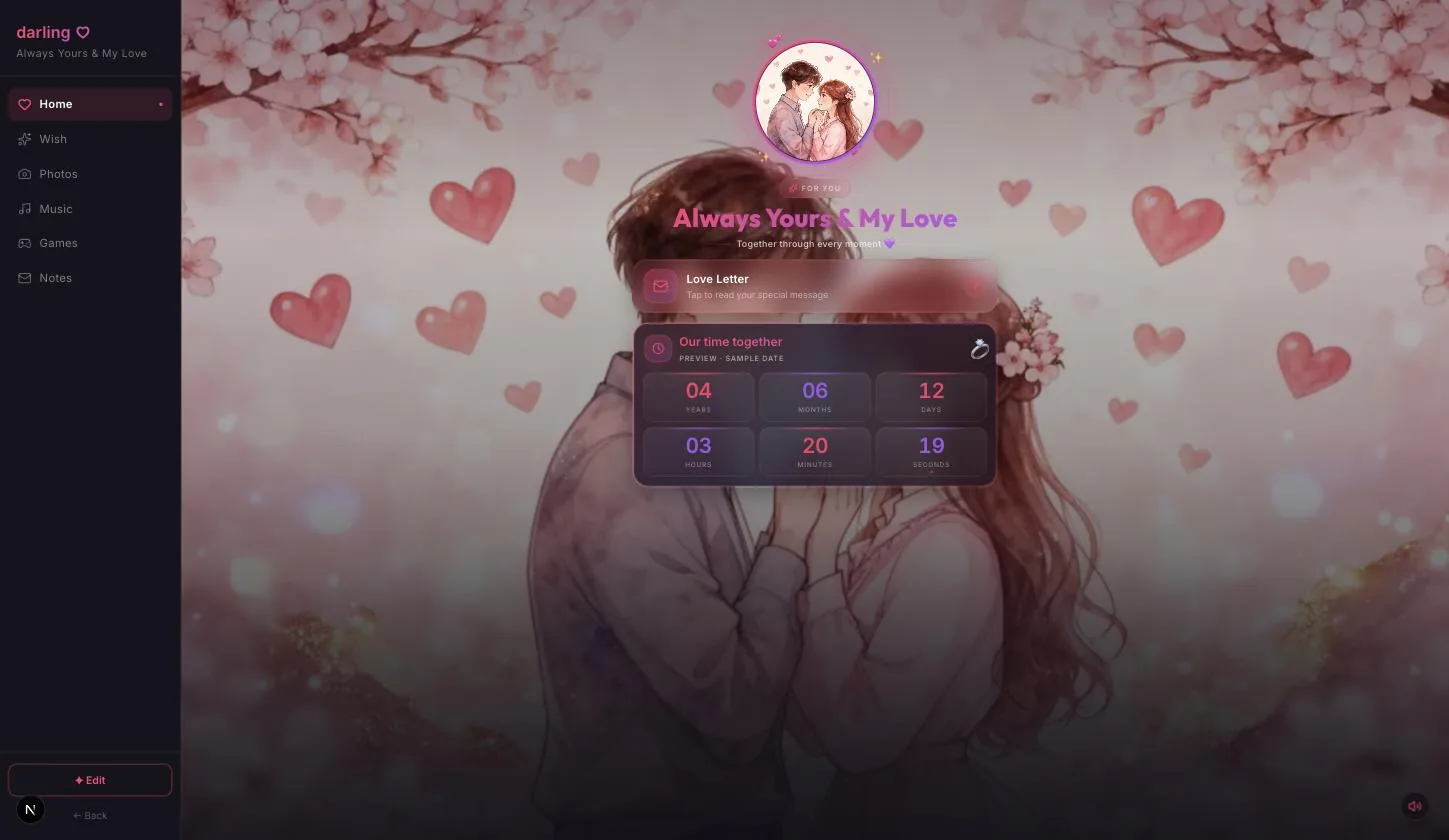
Darling opens as a finished sample so you can look round before committing to anything. Edit is at the foot of the left rail.
Step 1.1
Press Edit, bottom-left
Not a Create button at the top like most templates — Darling is a dashboard, and its controls live at the foot of the rail you are standing in.
Step 1.2
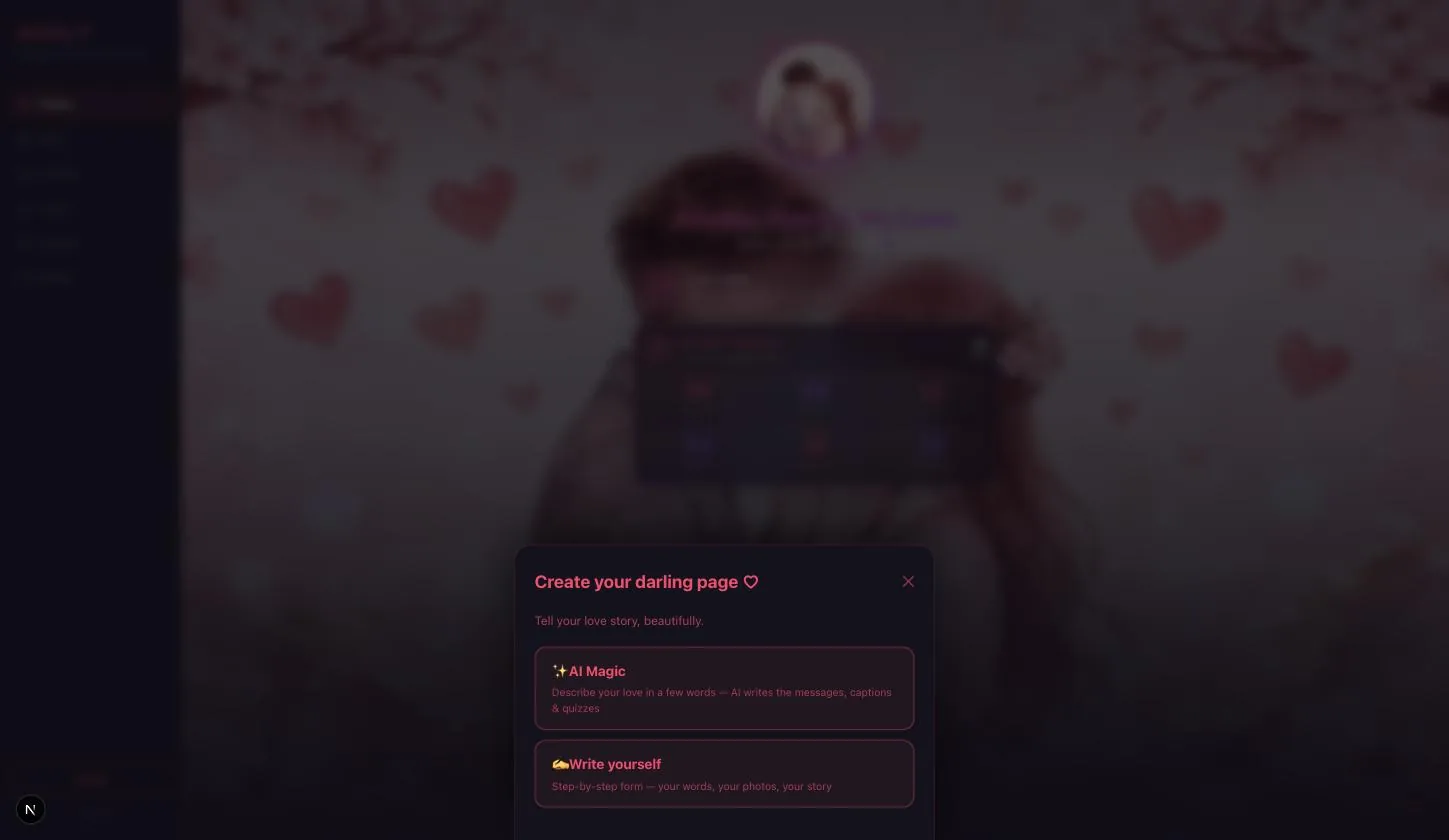
Then pick AI Magic or Write yourself
AI Magic asks you to describe your relationship in a few words and writes the messages, captions and quiz for you. Write yourself opens the nine-page form.
This guide takes the Write yourself path, and so does the video — because that is the one that shows you every field. If you use AI Magic you land in the same nine pages with the words already filled in, and everything below still applies: you are editing rather than typing from nothing.
Step 1.3
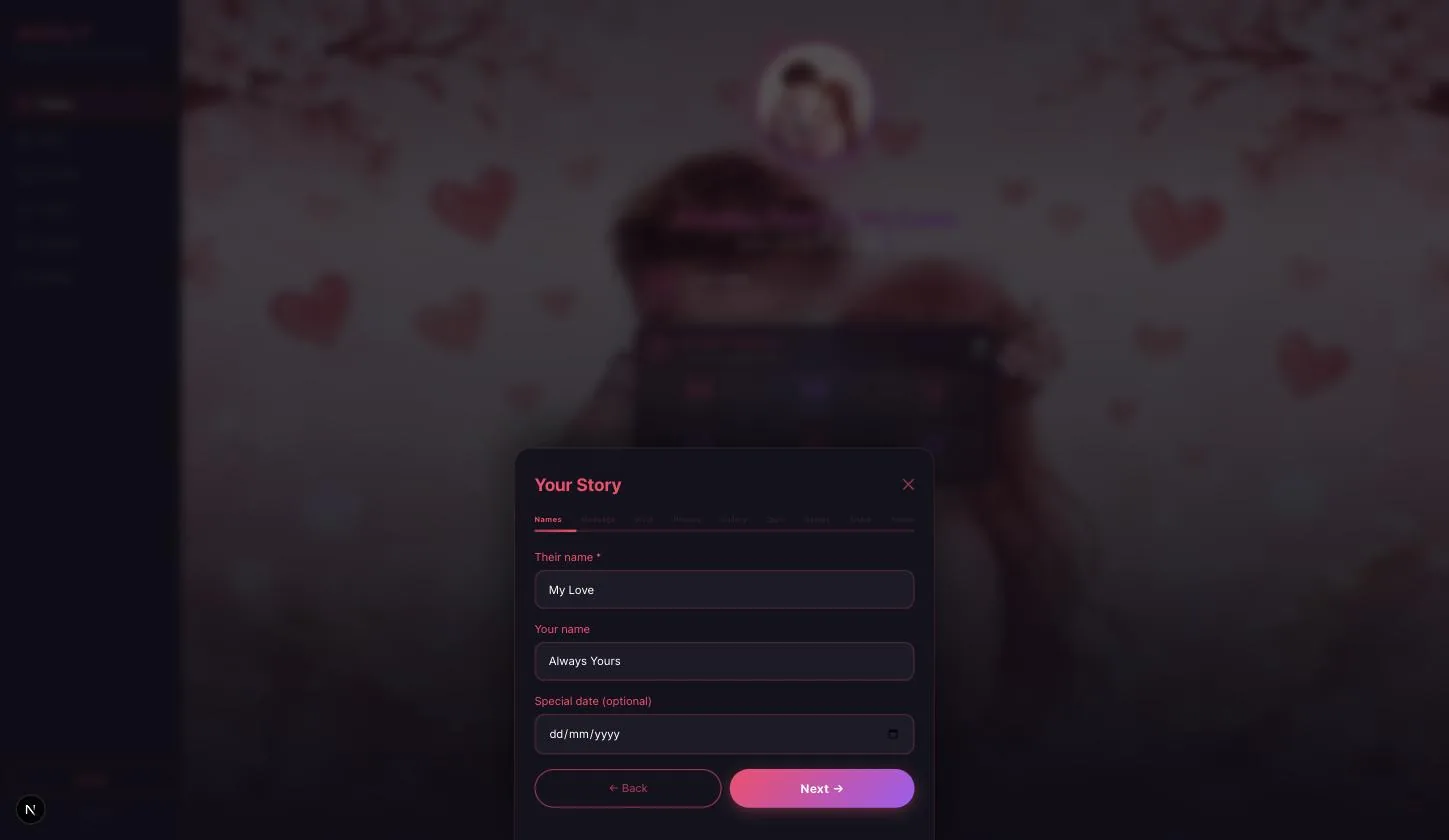
The strip along the top is a progress bar, not a menu
Names · Message · Wish · Photos · Gallery · Quiz · Games · Share · Polish shows where you are. You move with Next and Back — clicking the strip does nothing.
Names, and the date you count from
Step 2.1
Their name is the only required field
Everything else on this page can wait. Their name is what the page is addressed to and what the share link previews with.
Step 2.2
The special date drives the counter
Optional, and the field that earns its keep: set it and the home page runs a live count — years, months, days, hours, minutes, seconds — from that date. Leave it blank and the counter shows a sample.
The love message
Step 3.1
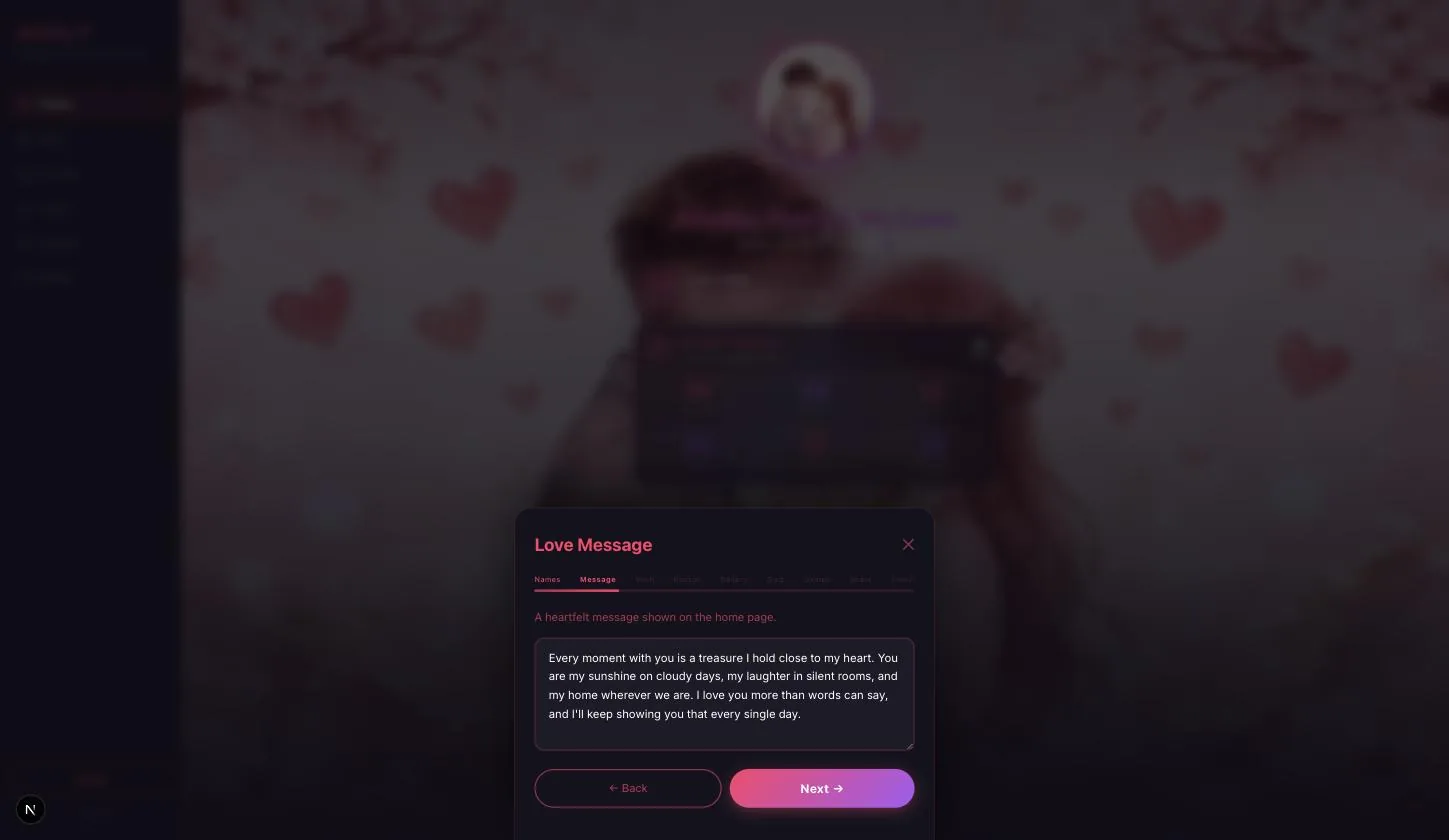
The paragraph on the home page
This sits under the title and is the first thing she reads. Long enough to say something, short enough that she reads it standing up.
The wish card
Step 4.1
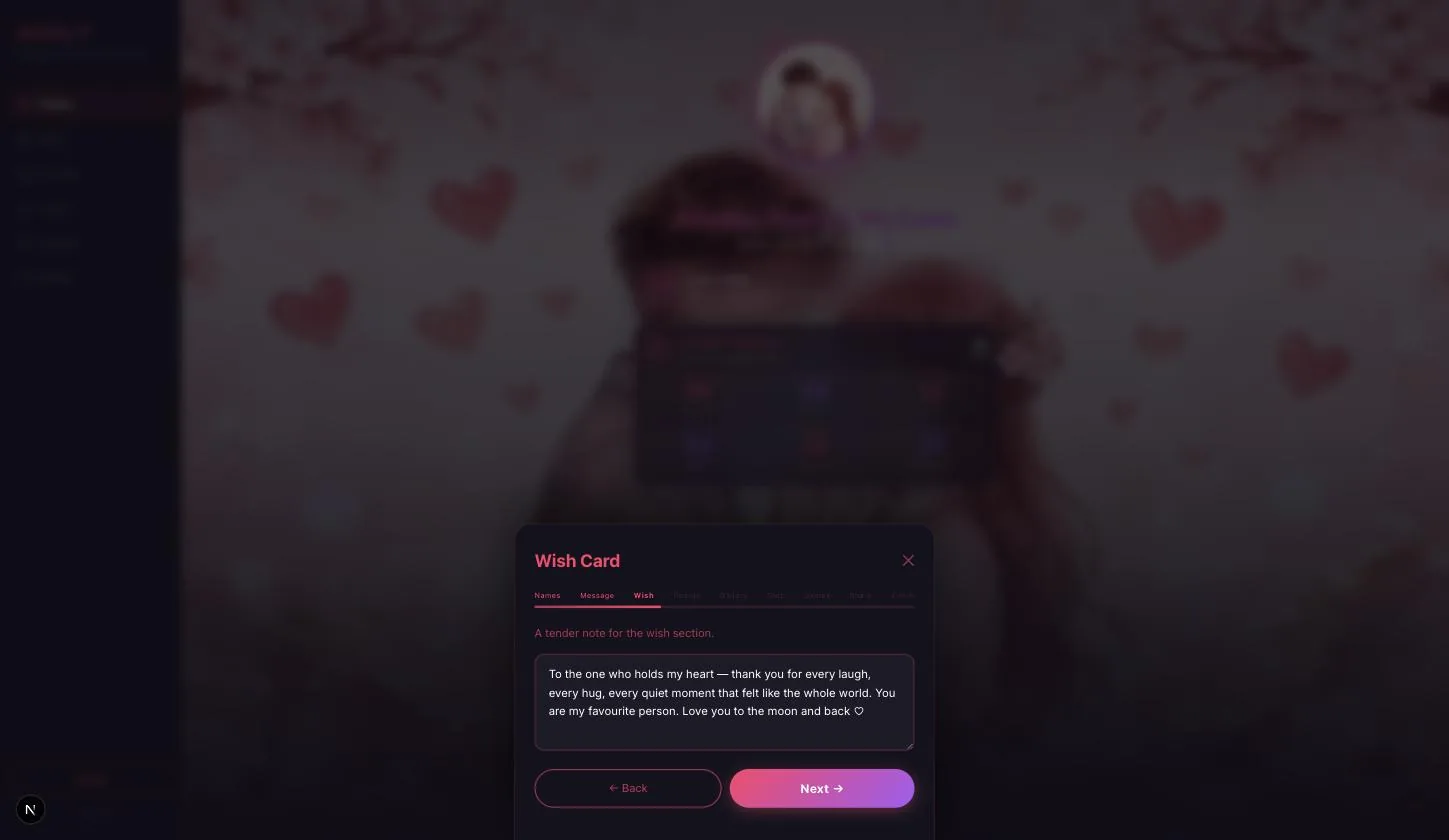
A second, softer note
This one lives behind the Wish tab rather than on the home page, so it is the one she finds rather than the one she is shown. Worth making it the more private of the two.
Her home photo
Step 5.1
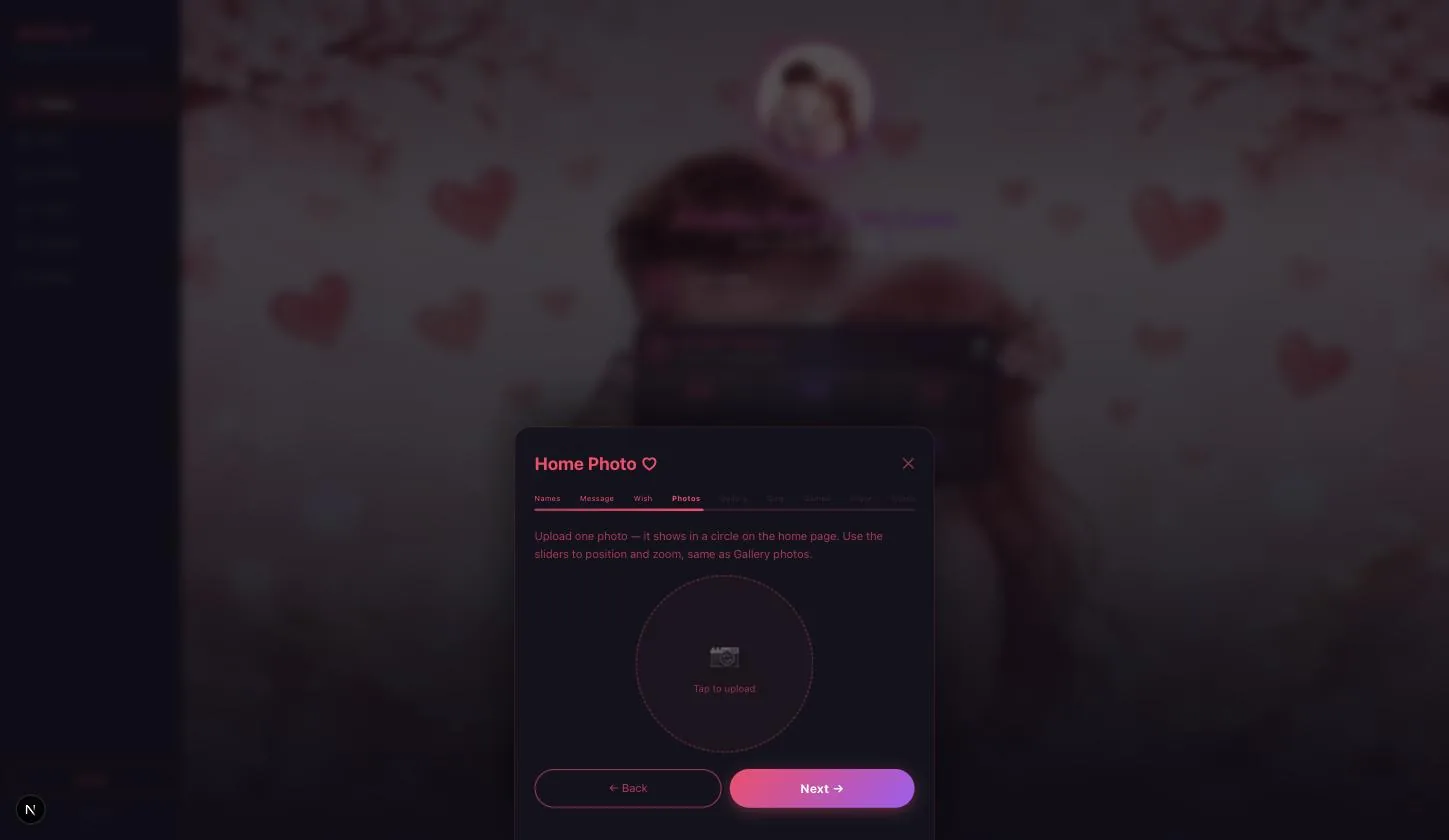
One photo, in a circle
It sits at the top of the home page inside a circular frame, so centre the faces. Sliders set position and zoom — the same control the gallery photos use.
Gallery photos
Step 6.1
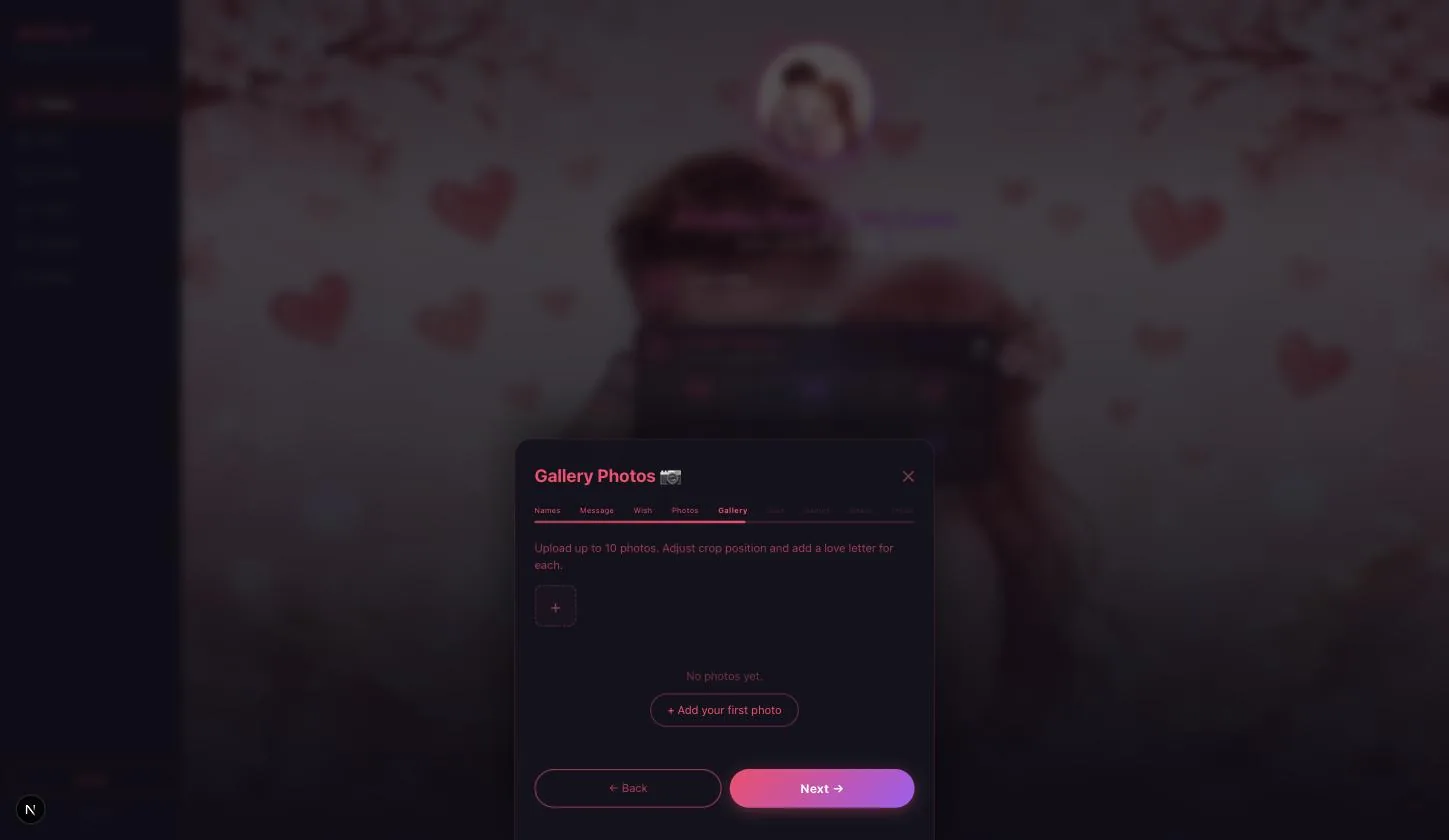
Up to ten, each with its own love letter
This is the section people underestimate. Every photo takes its own note, so the gallery reads as a sequence of moments rather than an album.
Ten is the ceiling, not the target. Six photos each with a real sentence beats ten with captions like “us ❤️”.
Quiz questions
Step 7.1
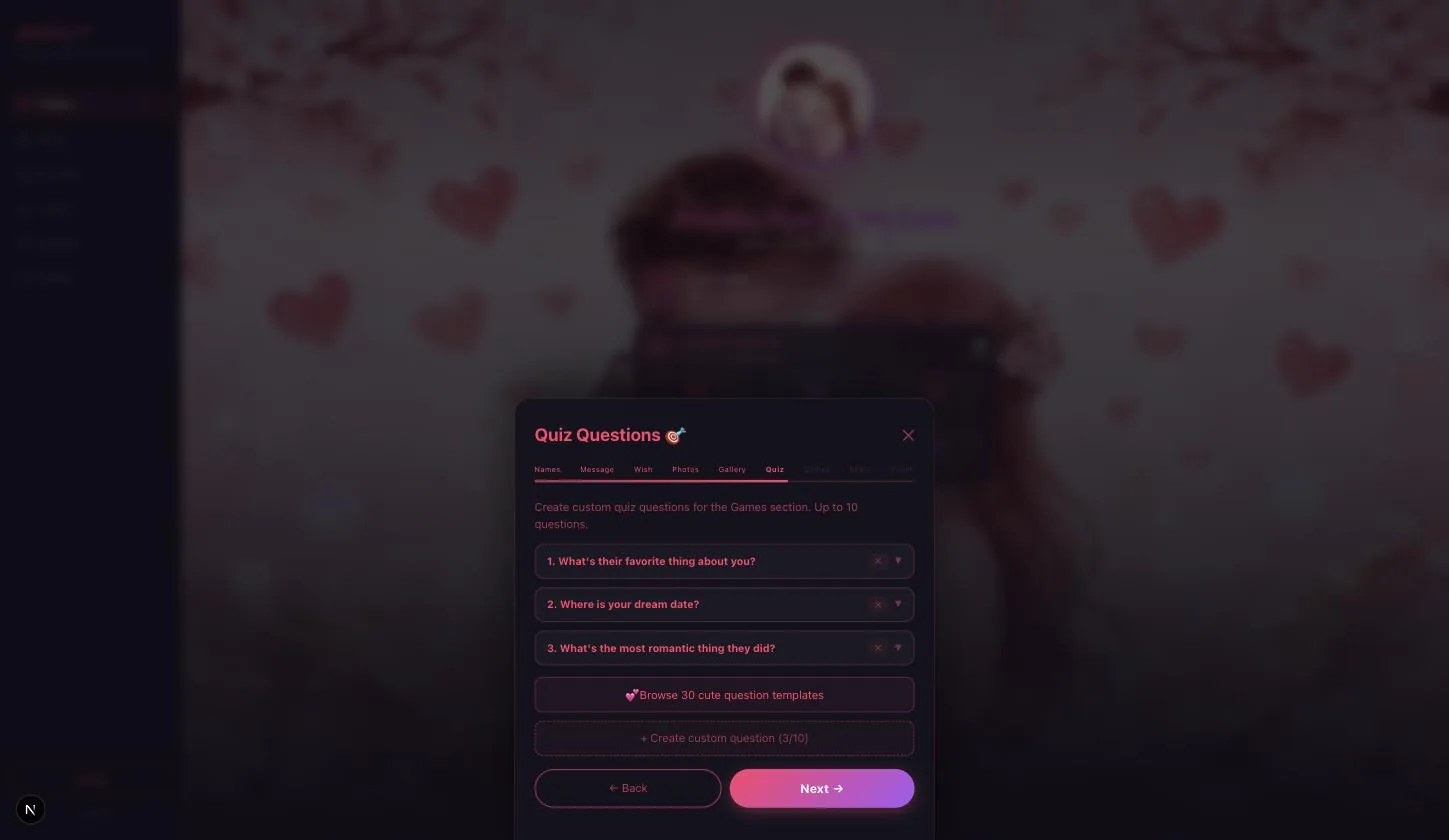
Three are already written for you
They arrive filled in, so the Games section works even if you skip this page entirely. Replace them with ones only she could answer.
Step 7.2
There is a library of thirty
Browse 30 cute question templates if you are stuck, or write your own — up to ten in total.
Truth & Dare
Step 8.1
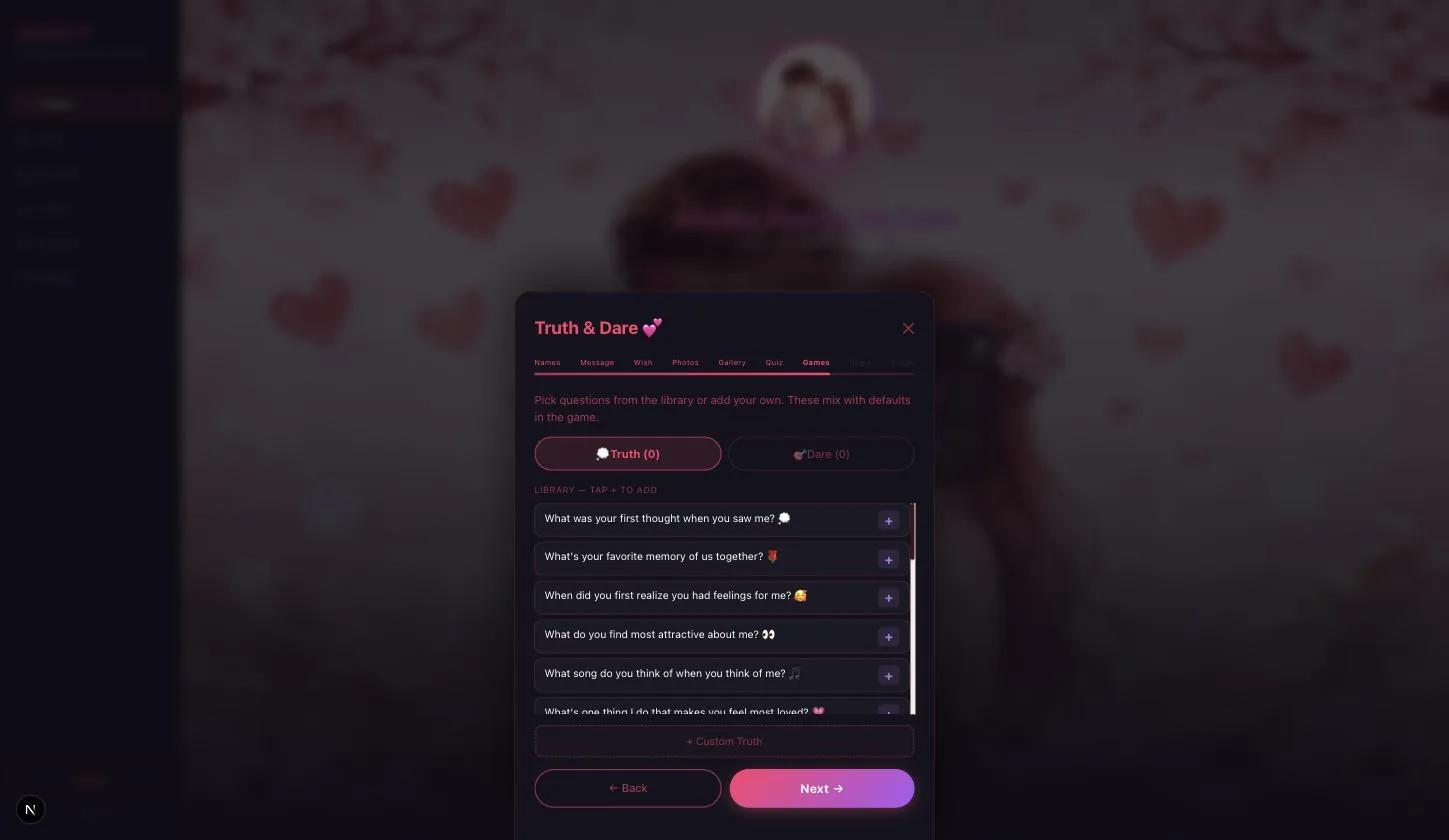
Two lists, picked from a library
Truth and Dare are separate tabs. Tap + on anything in the library to add it, or write your own with Custom Truth / Custom Dare.
Whatever you pick mixes with the built-in defaults rather than replacing them, so adding two of your own does not leave her with a two-question game.
The share photo
Step 9.1
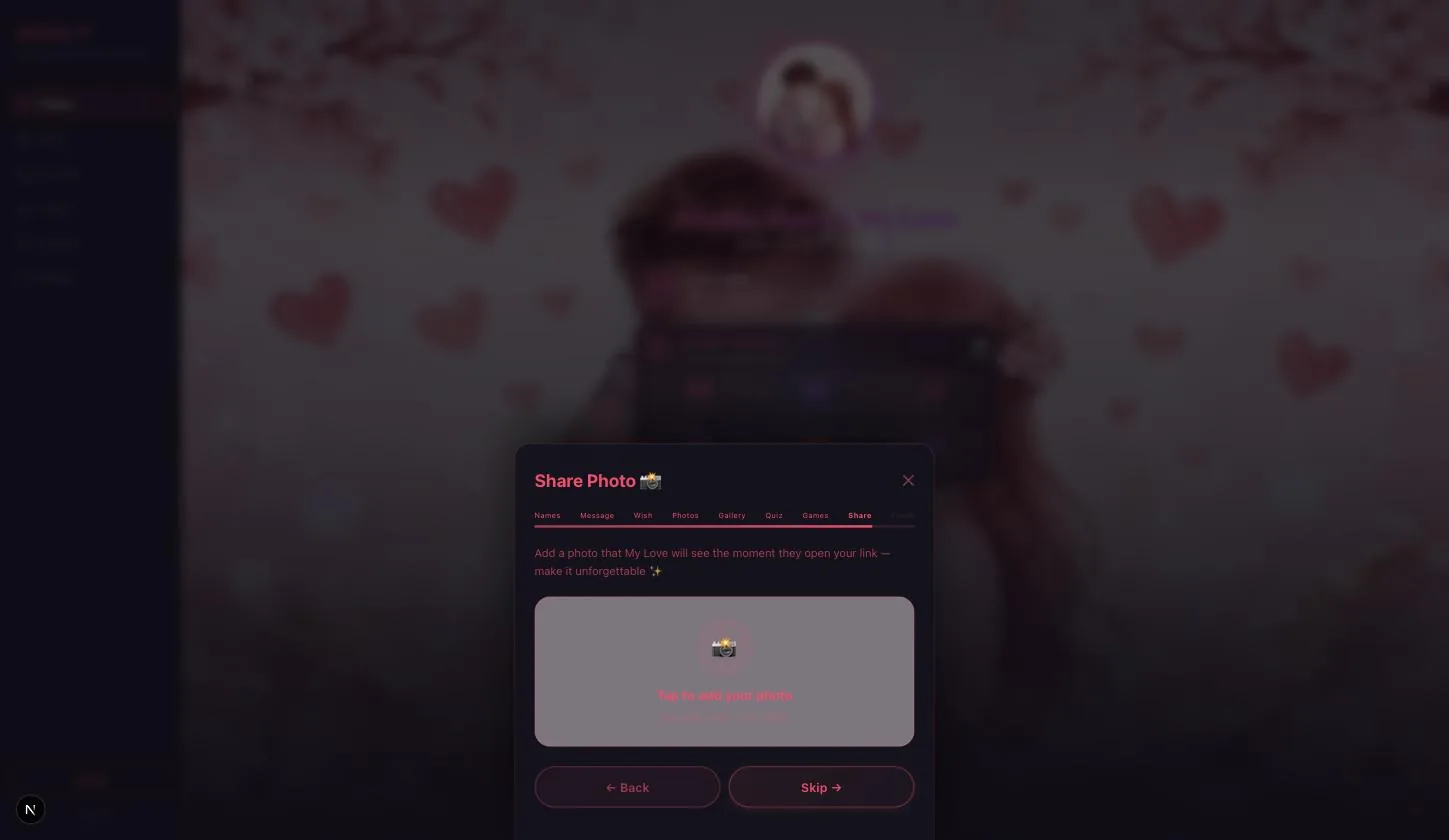
The image on the link itself
This is what appears when the link is pasted into WhatsApp or Instagram — the first thing she sees, before the page even opens.
The button on this page says Skip rather than Next, which is the honest label: leave it empty and the link still works, it just previews with the default artwork.
Save the page
Step 10.1
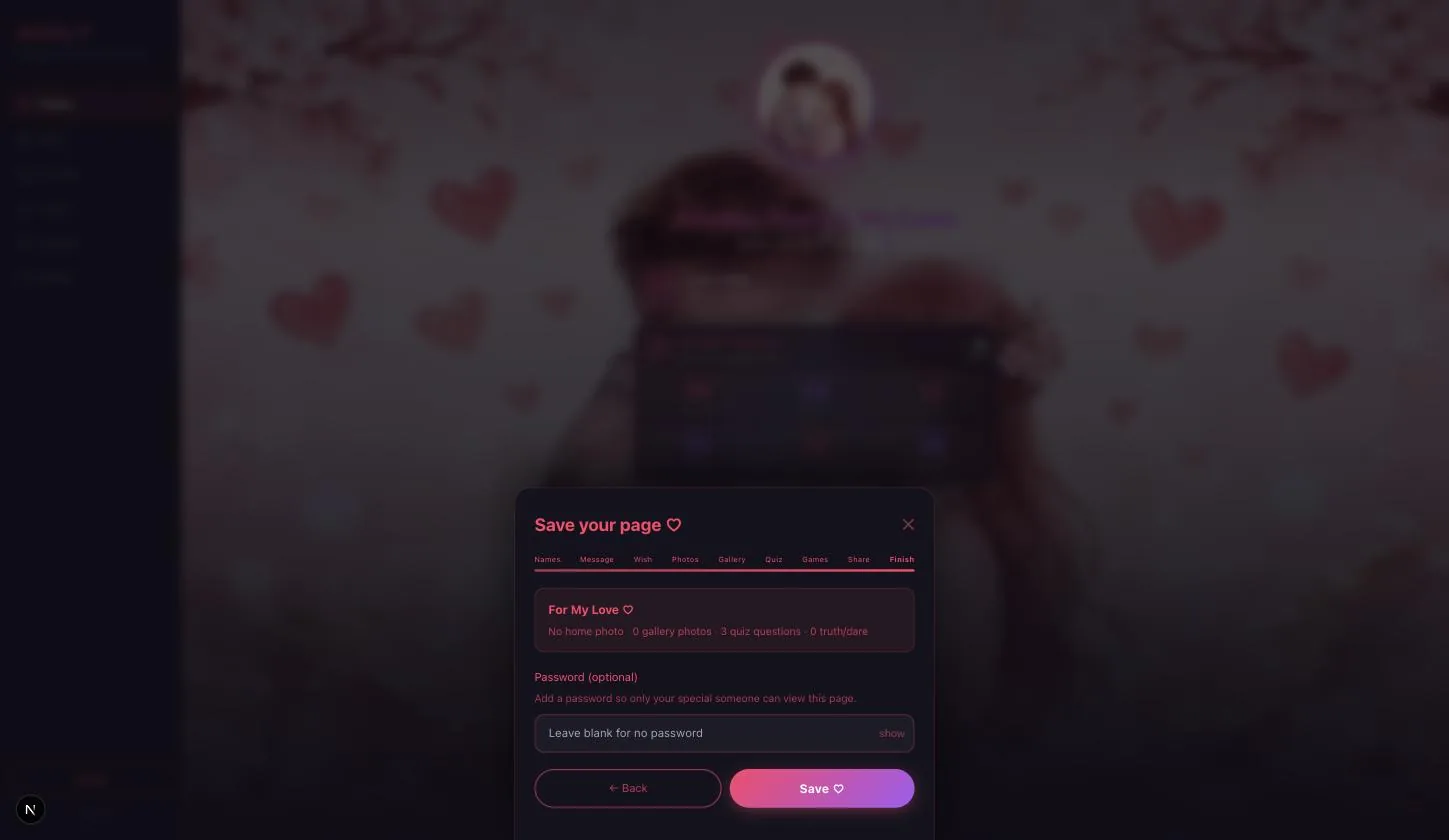
Check the summary line first
The card at the top counts what you actually filled — home photo, gallery photos, quiz questions, truth/dare. It is the fastest way to spot a page you meant to fill and skipped.
Step 10.2
Set a password if you want one
Optional. With it set, only someone with the word can open the page.
What she sees — all six rooms
The rail is her navigation, so the tour is the rail. Fastest understood by watching from 00:45.
Step 11.1
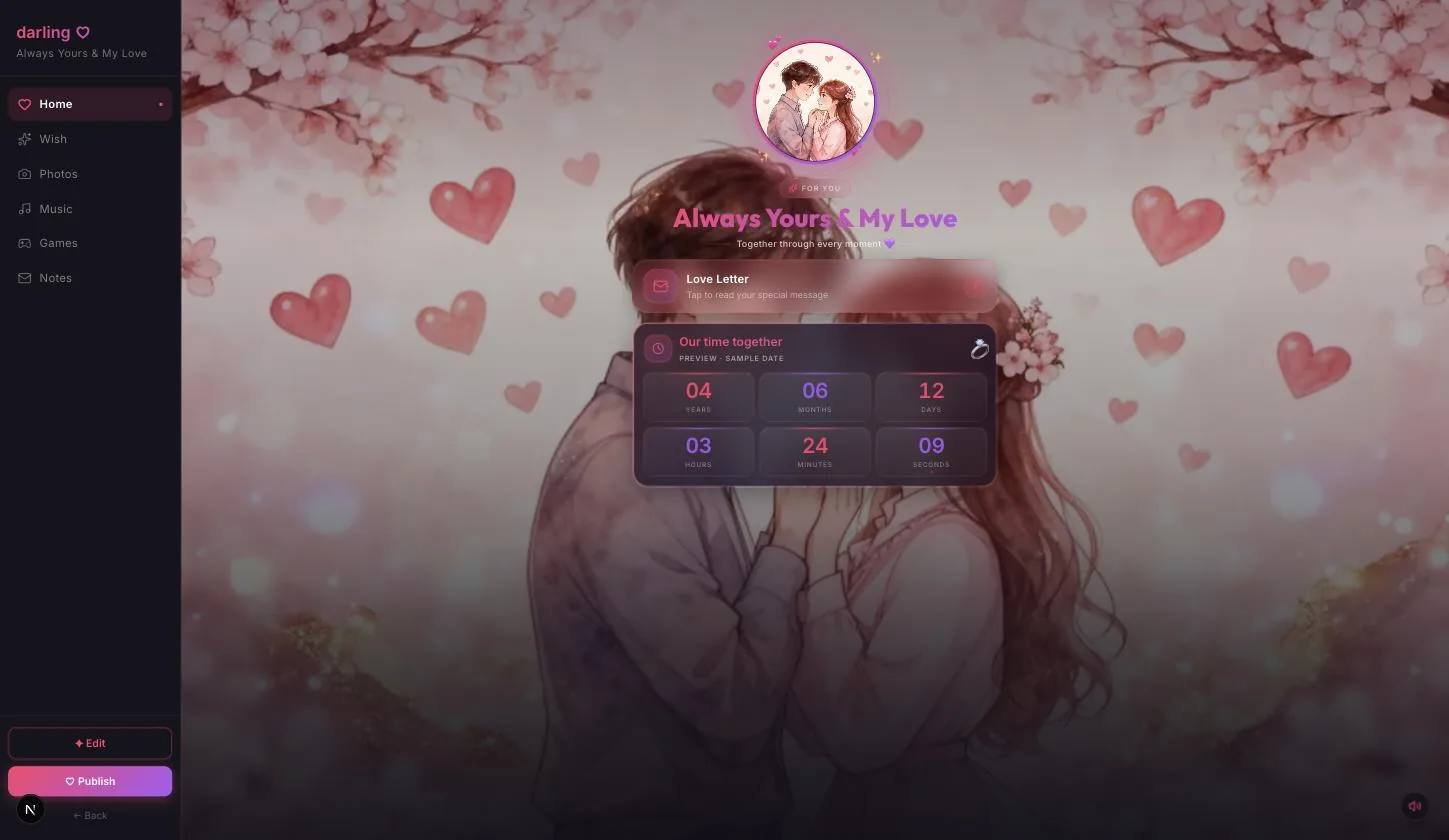
Home, Wish, Photos, Music, Games, Notes
Home carries the title, your message, the love letter and the counter. Wish holds the wish card. Photos is the gallery, one love letter at a time. Music is the playlist. Games is the quiz and truth-or-dare. Notes is where she writes back.
Step 11.2
She is not walked through it
Nothing is gated and there is no order — she wanders. That is the point of the format, and the reason it is worth filling more than one section.
Publish
Step 12.1
Publish appears once you have saved
Saving puts a Publish button in the rail under Edit. Until then there is nothing to publish.
Step 12.2
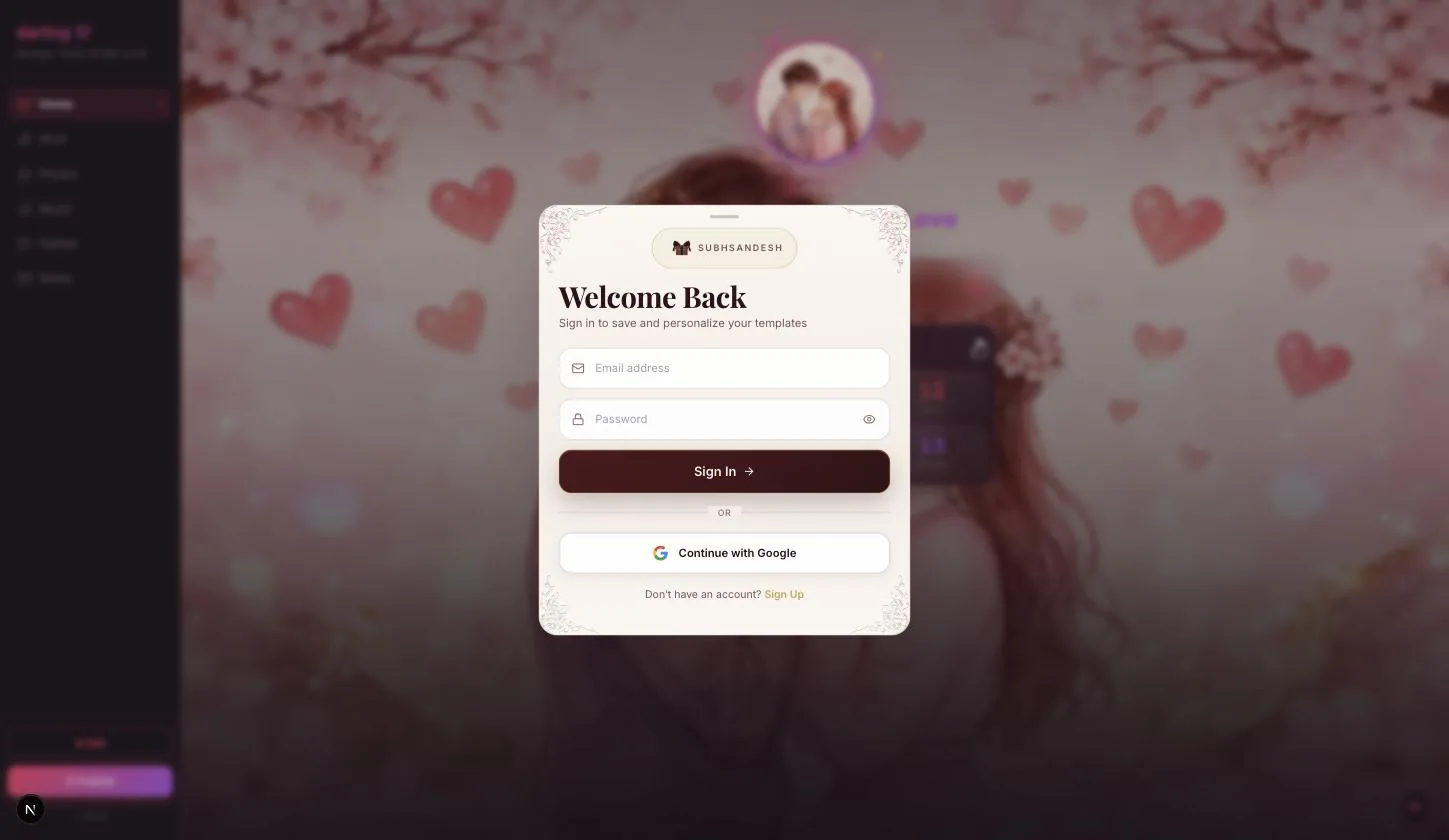
Signed out, you sign in here
The page publishes immediately afterwards — nothing you filled in is asked for twice.
On a phone the Google button is a full-page redirect. Let it come back on its own; closing the tab part-way means the publish never completes.
Your turn
About 10 minutes, and it is done.
You do not need an account to start — you are asked to sign in once, at the moment you publish.
Open My DarlingQuestions
What people ask about this one
Do I have to fill in all nine pages?
No. Their name is the only required field in the whole wizard, and the quiz arrives with three questions already written. Every other page can be skipped and the page still works — it just has fewer rooms worth wandering into. The summary on the Save page tells you what you left empty.
What does AI Magic actually write?
The messages, the photo captions and the quiz questions, from a few words you give it about your relationship. It drops you into the same nine pages with those fields filled, so you are editing rather than starting from a blank form. The video takes the manual path because it shows every field.
Can I change the music?
The Music room ships with a playlist. It is her side of the page rather than a builder field, so it is not part of the wizard.
What is the difference between the love message and the wish card?
Placement, and so tone. The love message is on the home page — the first thing she reads. The wish card is behind the Wish tab, so she finds it herself. Most people make the second one more private than the first.
How long does the whole thing take?
About ten minutes if you have the photos ready. It is longer than the other templates because there is genuinely more in it — the gallery letters and the quiz are where the time goes.
Keep going