
🤍 Product guide
Build the Love Page — a paper board she can pin through
A crumpled-paper board with your photos pinned to it as polaroids, and six rooms behind the rail — Home, Wish, Photos, Music, Games, Notes. You fill it through a nine-page wizard. Four photos go on the board itself, ten more into the gallery with a love letter on each, and the Games room holds a quiz you write, truth-or-dare, and your story.
Watch
The whole build, end to end
This recording has no voiceover — every action is labelled on screen as it happens. Click a chapter to jump the video there. To read that step instead, use the ↓ beside it — the written walkthrough is below.
Step by step
The written walkthrough
Everything the video covers, in a form you can search, scan and keep open in another tab.
Open the builder — and choose how to fill it
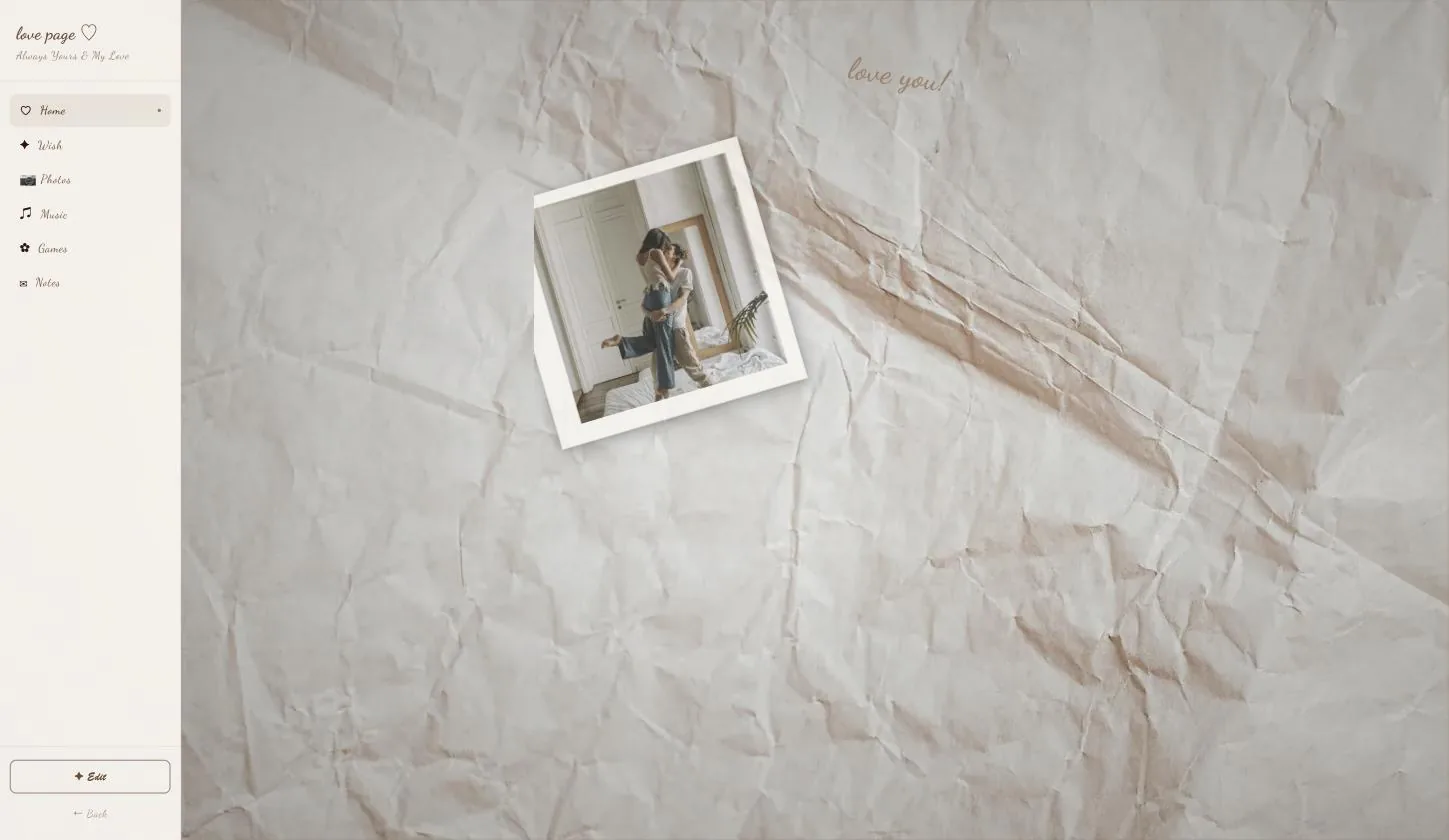
The page opens as a finished sample so you can wander it first. Edit sits at the foot of the left rail, not in a top bar.
Step 1.1
Press Edit, bottom-left
This is a dashboard rather than a card, so its controls live at the foot of the rail you are standing in.
Step 1.2
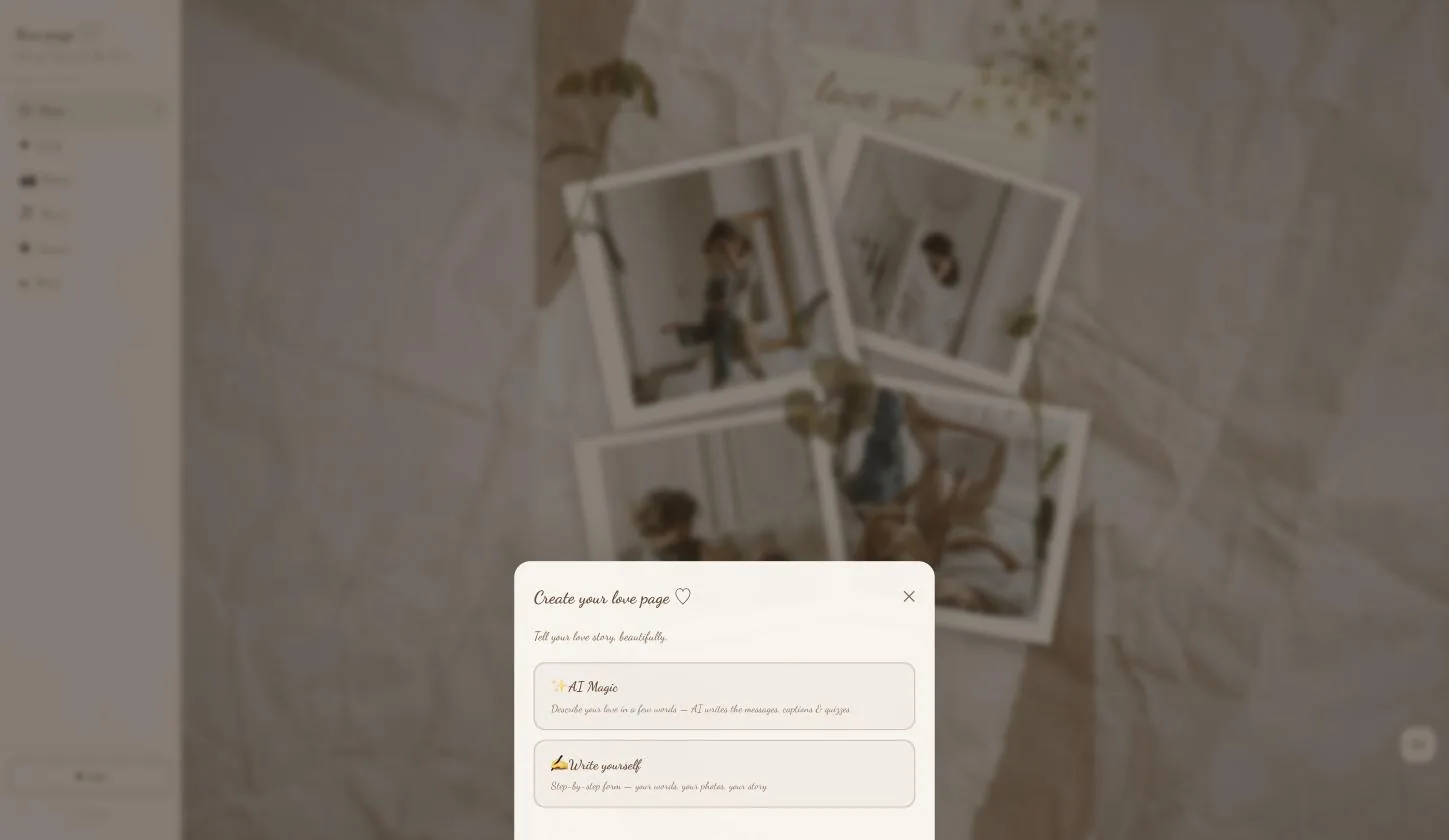
Then pick AI Magic or Write yourself
AI Magic writes the messages, captions and quiz from a few words about your relationship. Write yourself opens the nine-page form.
This guide follows Write yourself, and so does the video, because that is the path that shows every field. AI Magic lands you in the same nine pages with the words filled in — everything below still applies, you are just editing rather than typing from nothing.
Step 1.3
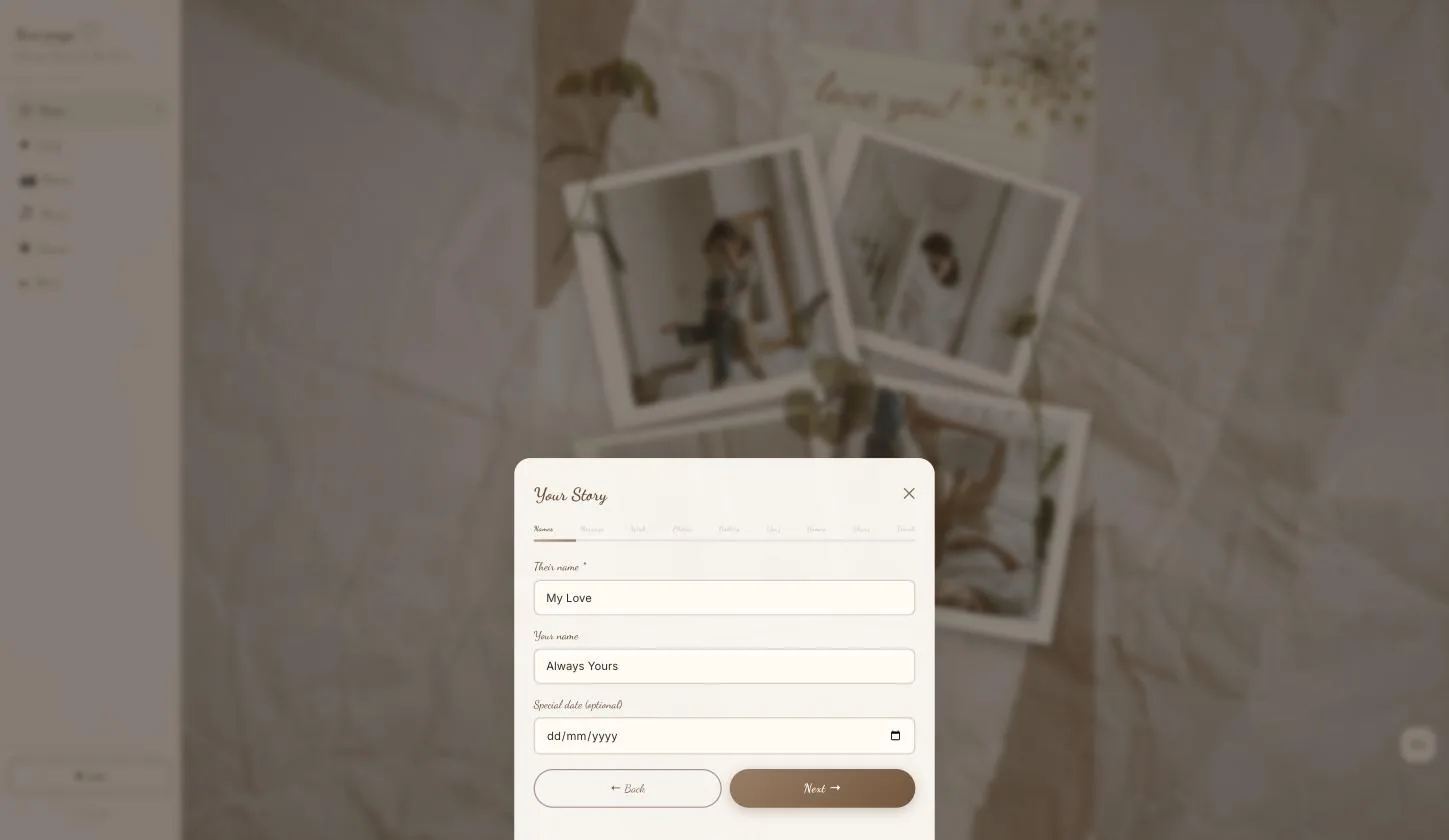
The strip along the top is a progress bar, not a menu
Names · Message · Wish · Photos · Gallery · Quiz · Games · Share · Finish shows where you are. You move with Next and Back; clicking the strip does nothing.
Names, and the date you count from
Step 2.1
Their name is the only required field
It is what the page is addressed to and what the share link previews with. Everything else in the wizard can wait.
The love message
Step 3.1
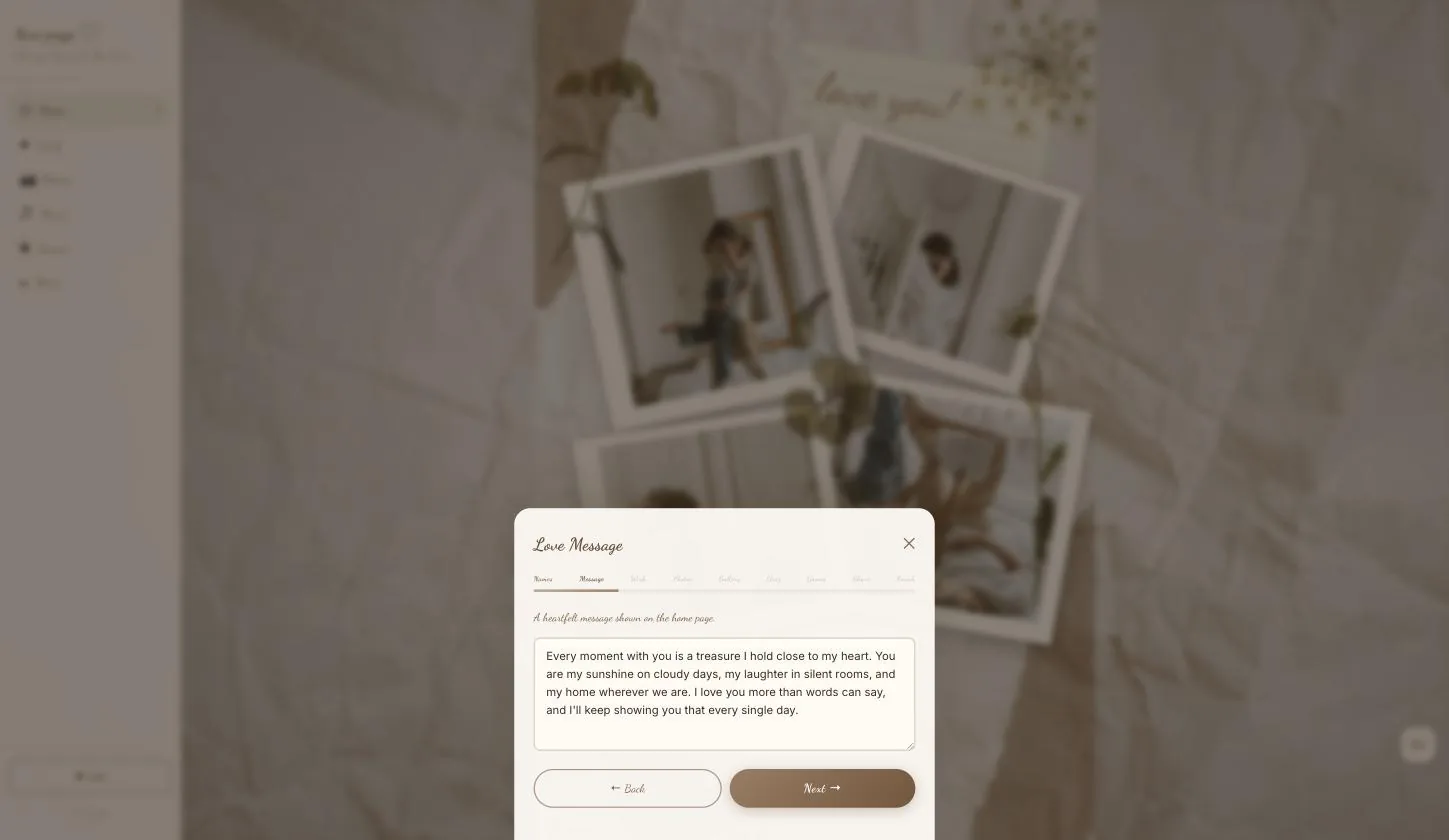
The paragraph on the home board
The first thing she reads once she is past the photos.
The wish card
Step 4.1
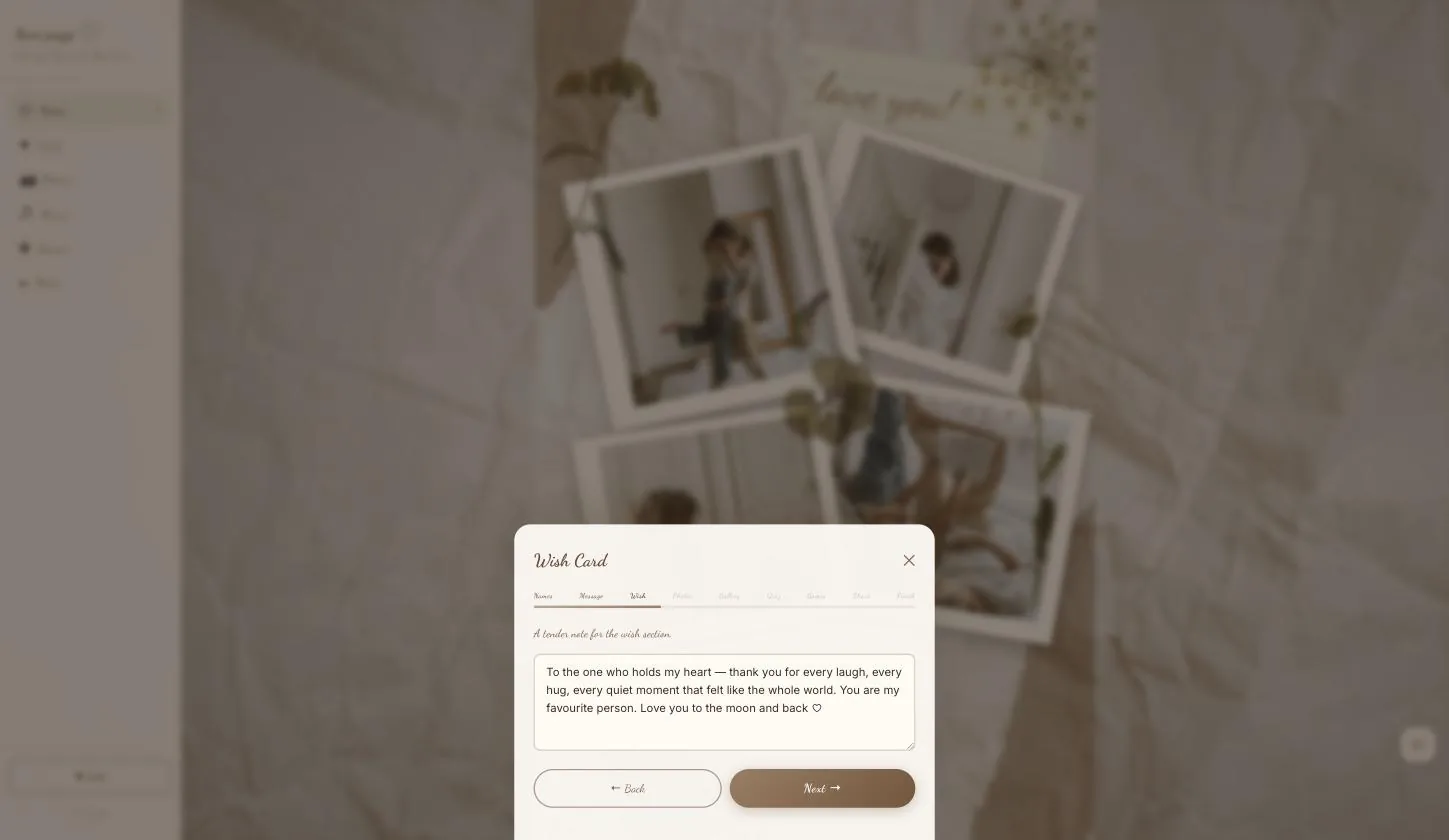
A second, quieter note
This one lives behind the Wish tab rather than on the board, so it is the one she finds rather than the one she is handed. Worth making it the more private of the two.
Four photos for the board
Step 5.1
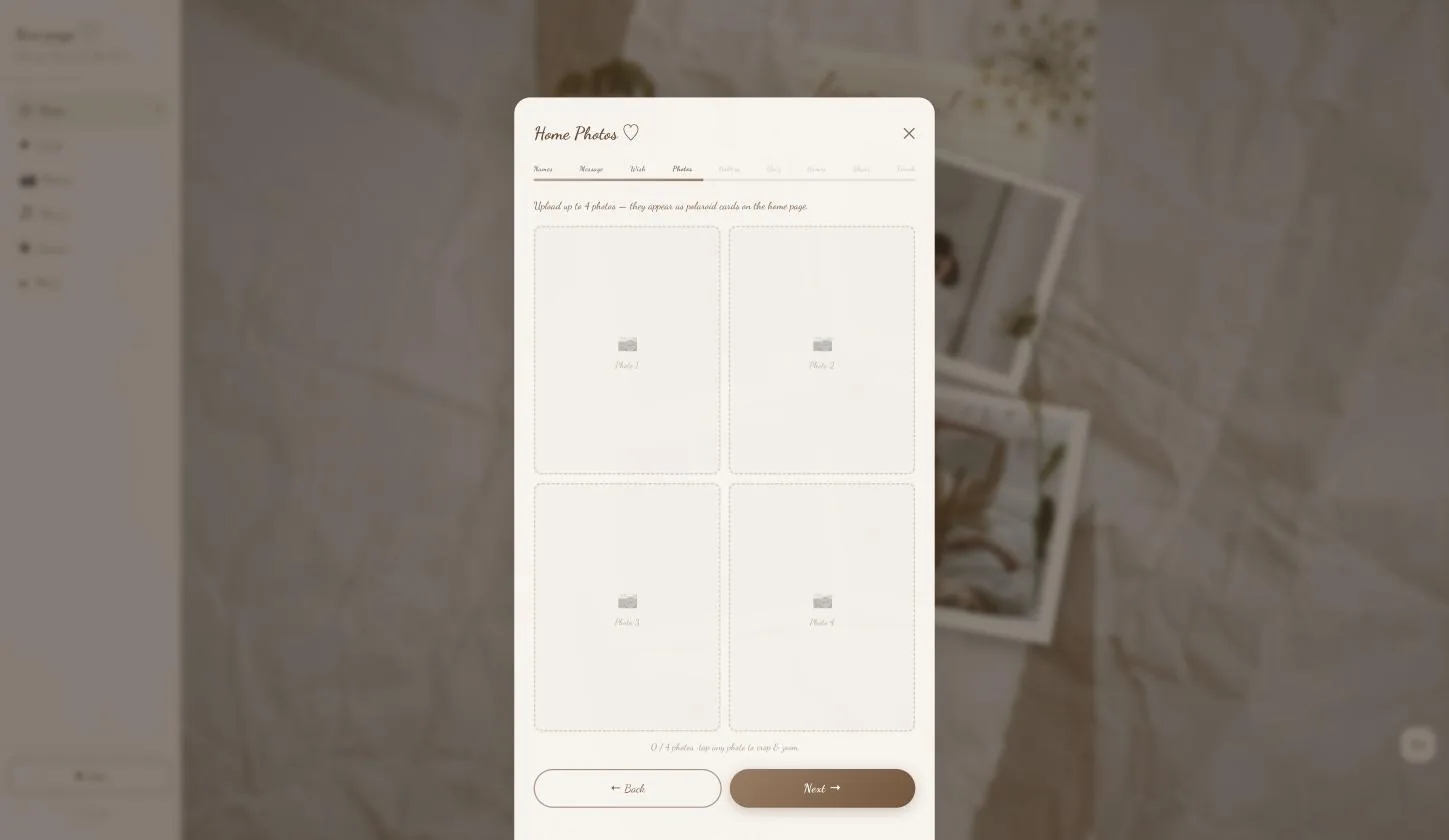
These become the polaroids
Up to four, and they are pinned to the paper board as polaroid cards at angles — the first thing she sees. Tap any one to crop and zoom it.
Four, not one. If you have come from the Darling guide, note the difference — Darling puts a single photo in a circle, this one builds a board out of four.
Gallery photos, and a letter on each
Step 6.1
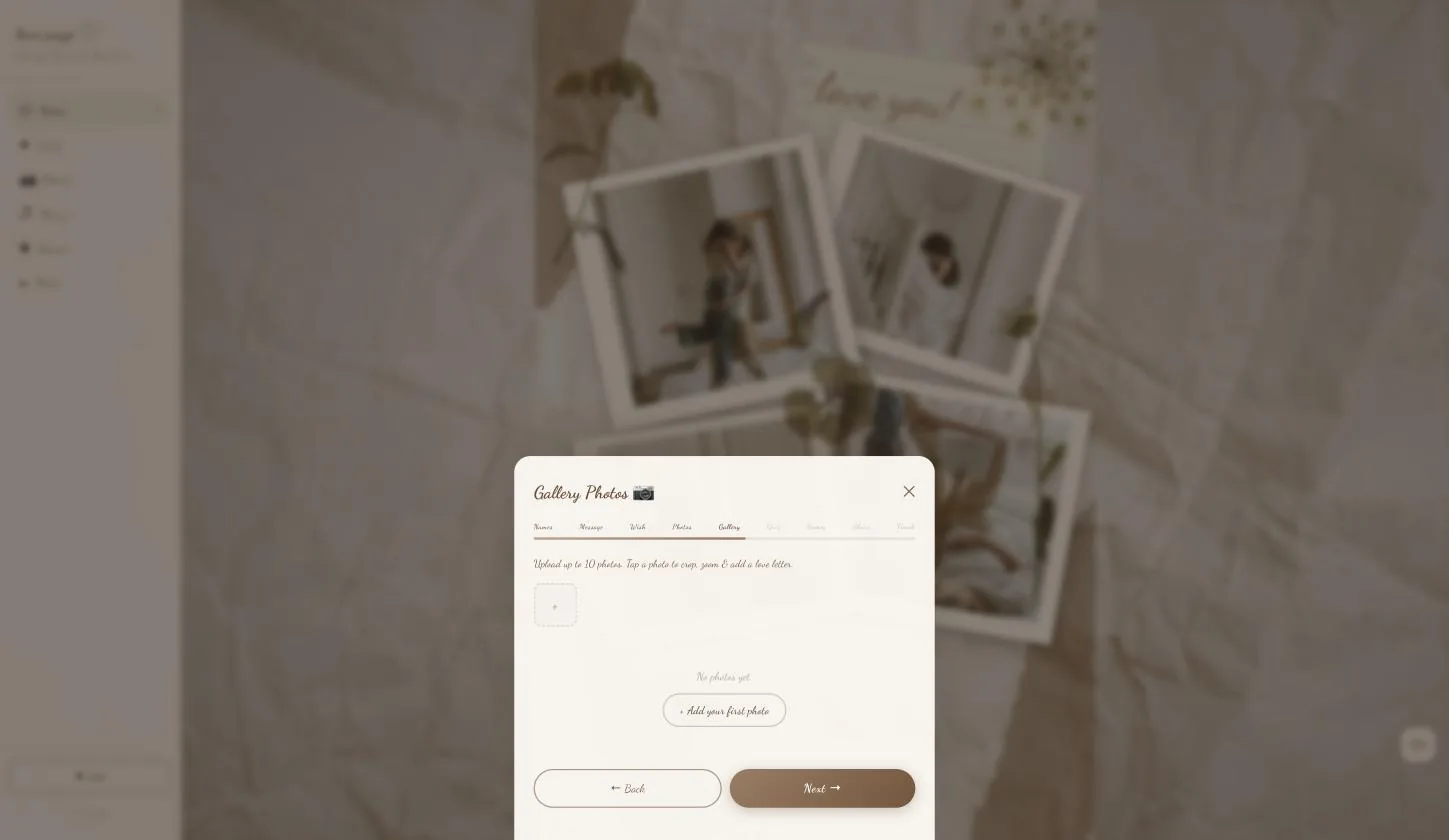
Up to ten more
These live behind the Photos tab rather than on the board. Every one takes its own love letter, so the gallery reads as a sequence of moments rather than an album.
Ten is the ceiling, not the target. Six photos each with a real sentence beats ten captioned “us ❤️”.
Quiz questions
Step 7.1
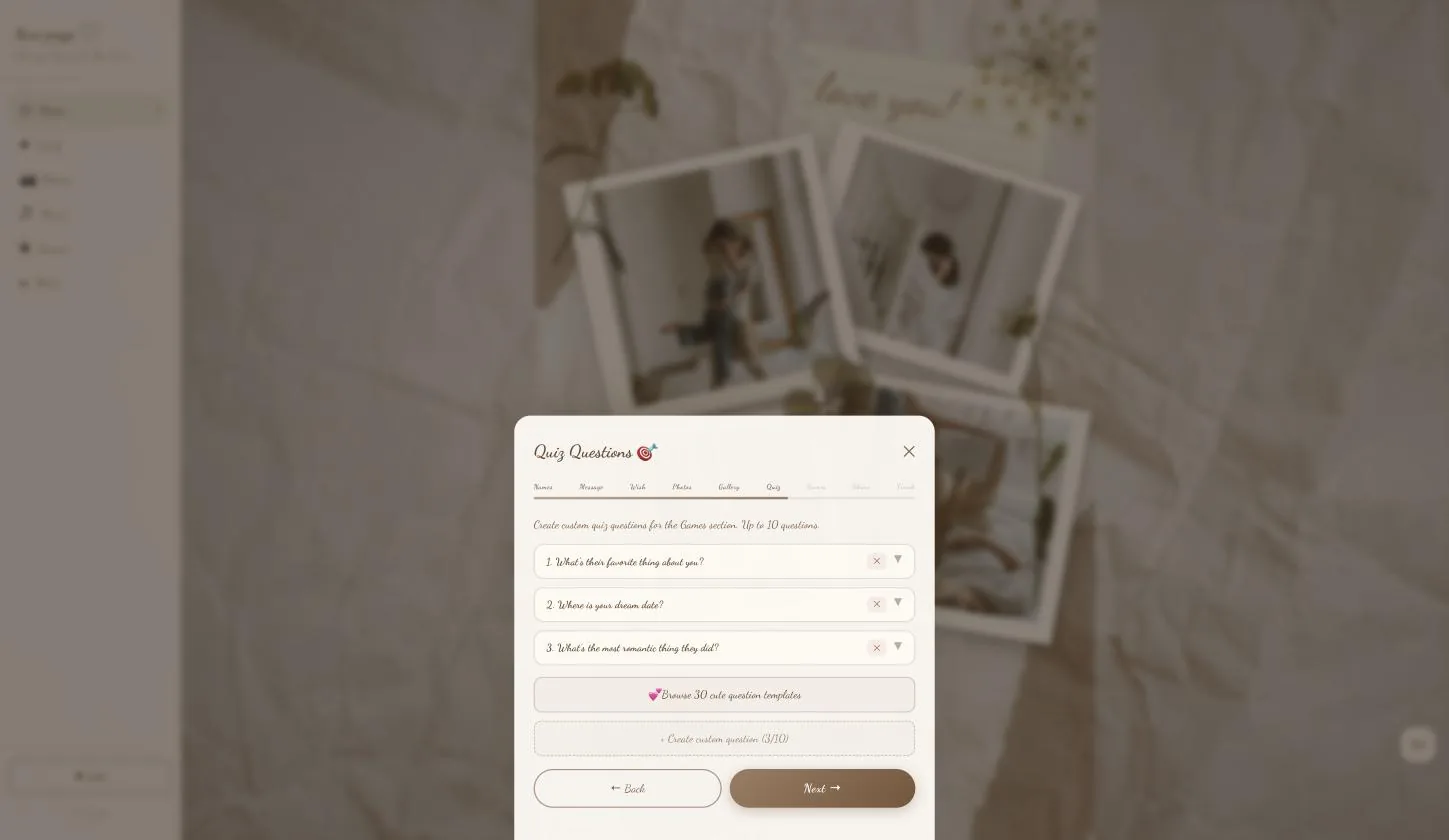
Three arrive already written
So the Games room works even if you skip this page. Replace them with ones only she could answer.
Step 7.2
There is a library of thirty
Browse it if you are stuck, or write your own — up to ten in total.
Truth & Dare
Step 8.1
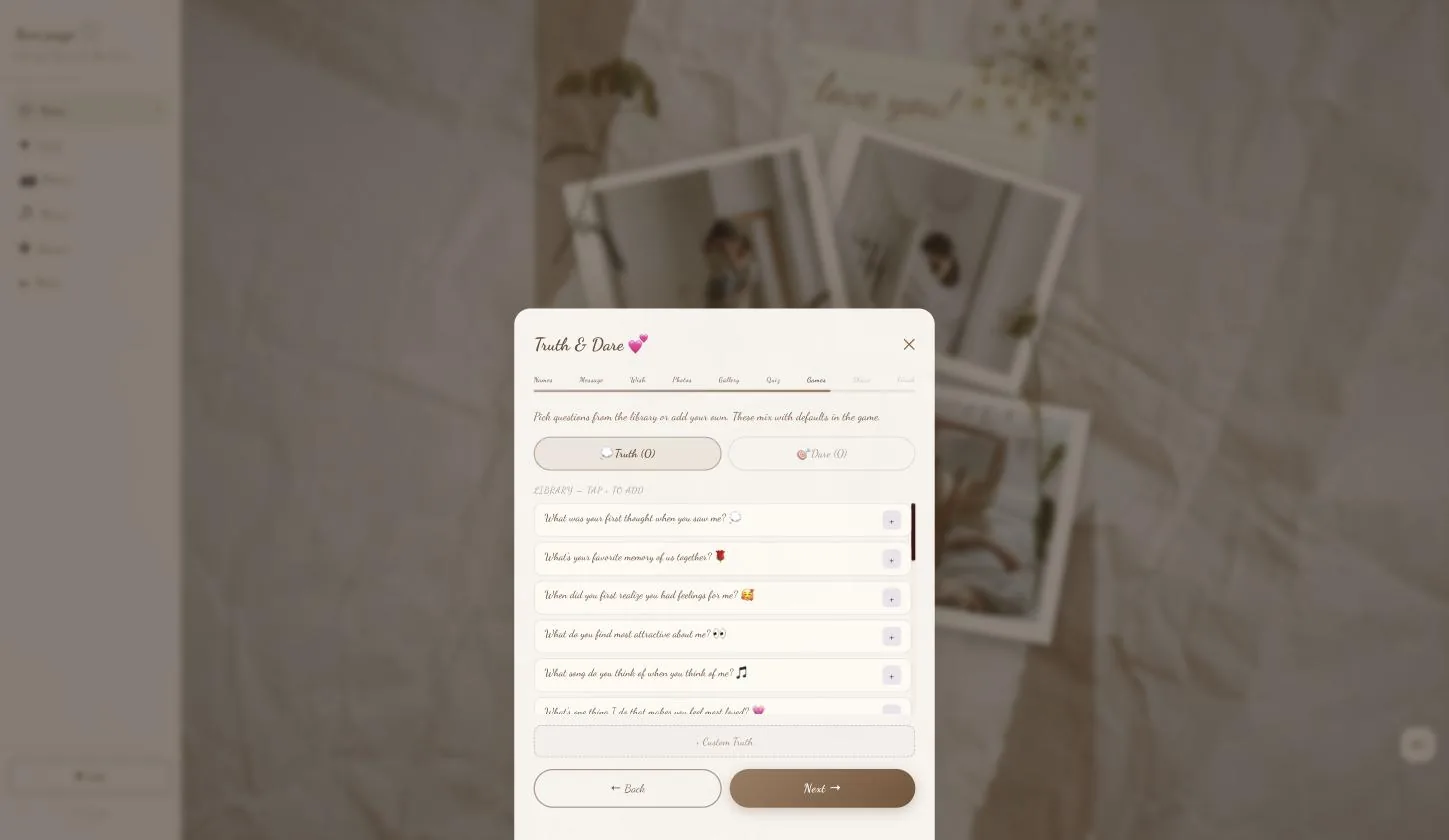
Two lists, picked from a library
Truth and Dare are separate tabs. Tap + on anything in the library, or write your own with Custom Truth / Custom Dare.
What you pick mixes with the built-in defaults rather than replacing them, so adding two of your own does not leave her with a two-question game.
The share photo
Step 9.1
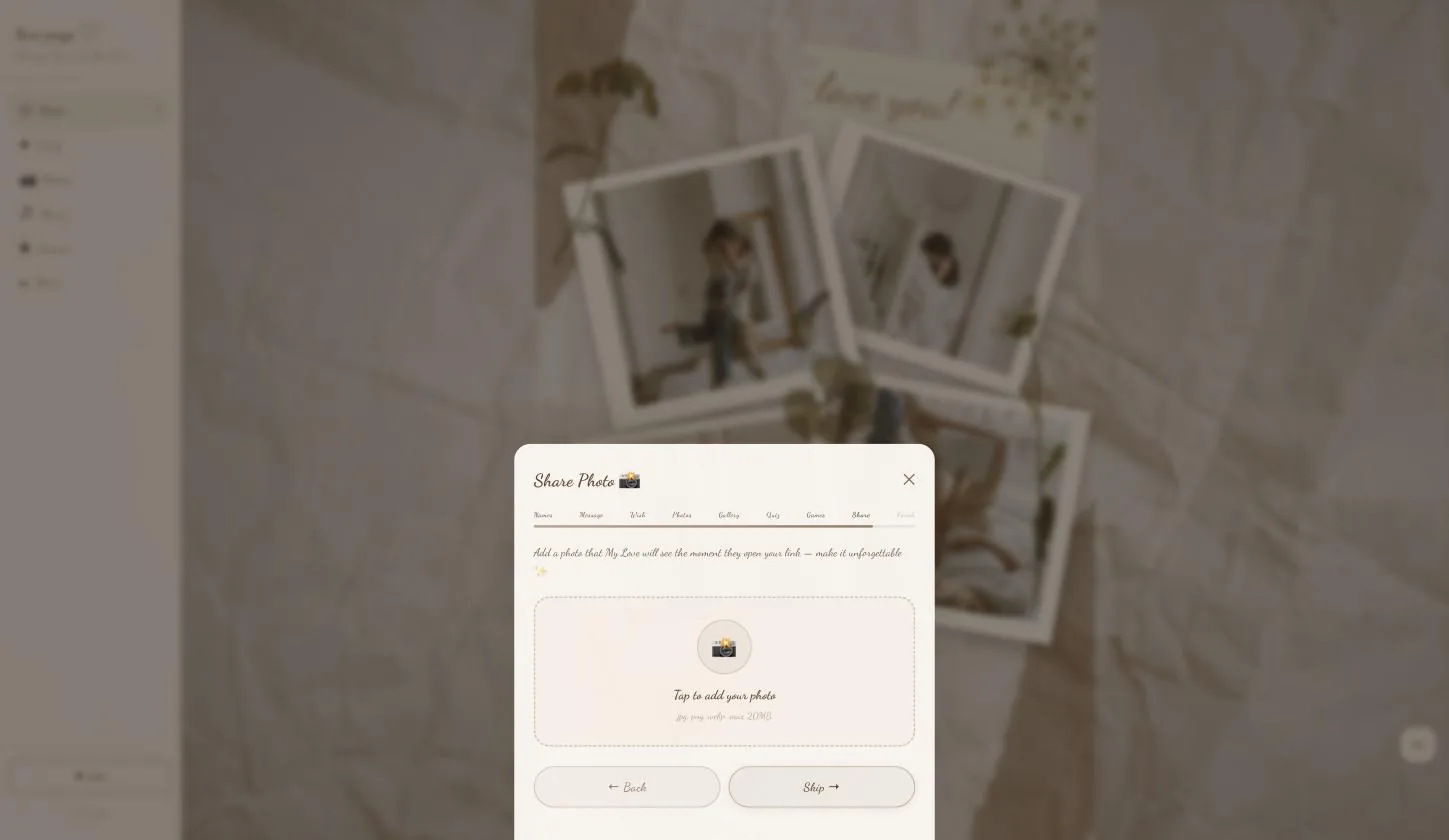
The image on the link itself
What appears when the link is pasted into WhatsApp or Instagram — seen before the page even opens.
The button here says Skip rather than Next, which is the honest label: leave it empty and the link still works, it just previews with the default artwork.
Save the page
Step 10.1
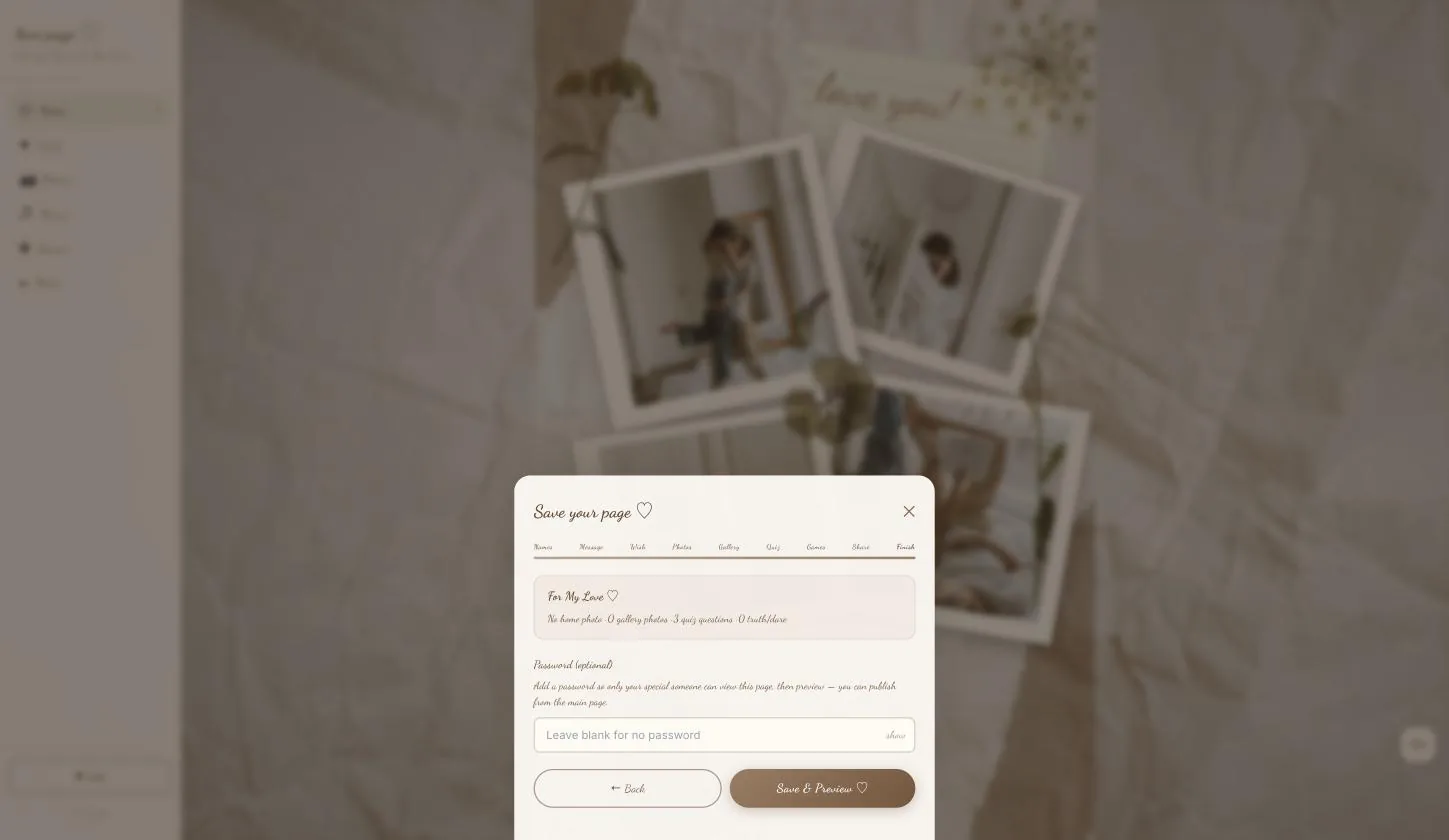
Check the summary line first
The card at the top counts what you actually filled — home photo, gallery photos, quiz questions, truth/dare. The fastest way to catch a page you meant to fill and skipped.
Step 10.2
Password is optional
Set it and only someone with the word can open the page. Saving does not publish — you publish from the main page afterwards.
What she sees — all six rooms
The rail is her navigation, so the tour is the rail. Quickest understood by watching from 00:47.
Step 11.1
The board first
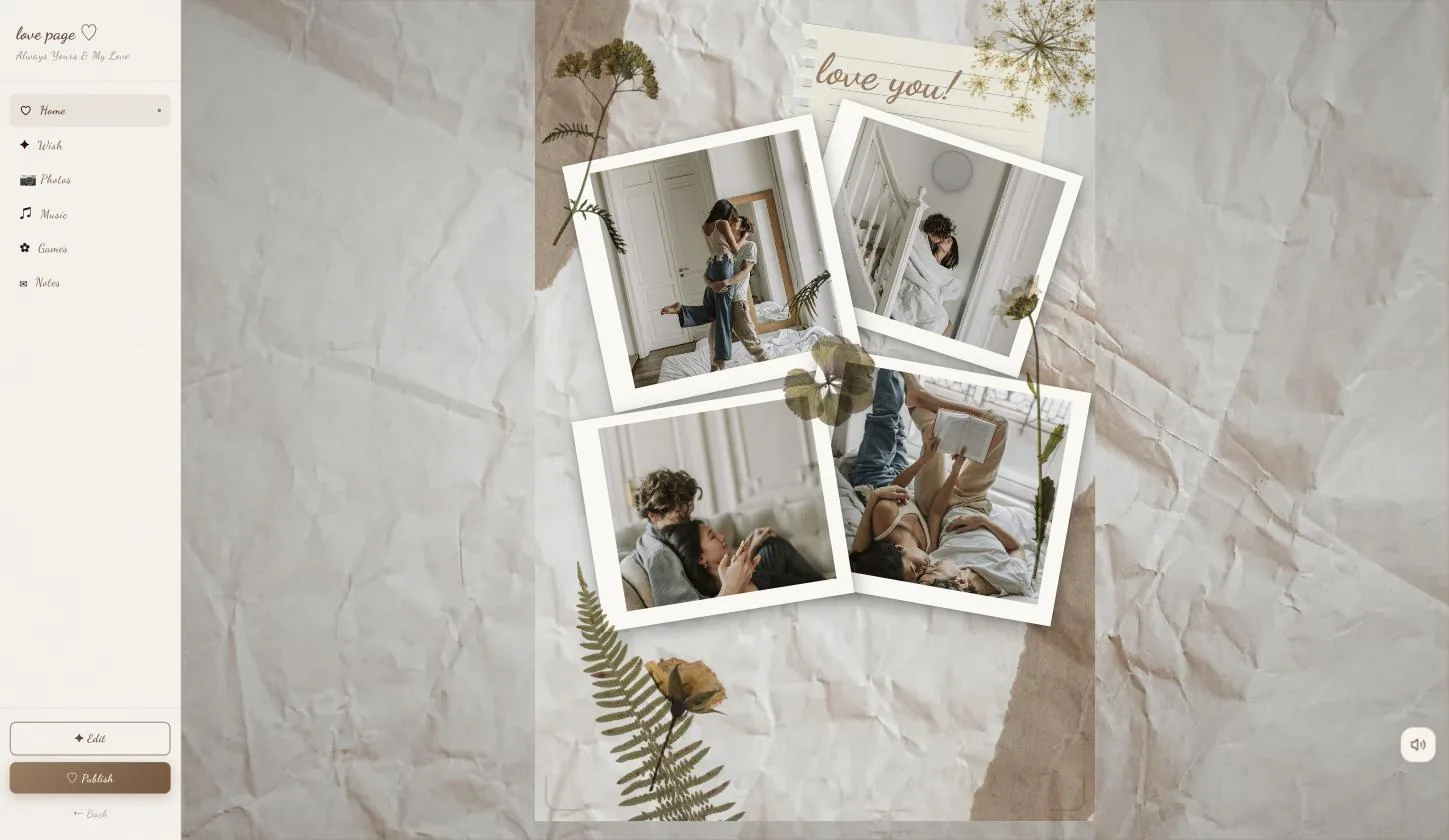
Home is the paper board: your four polaroids, the pressed flowers, the handwritten note, your message.
Step 11.2
Then Wish, Photos, Music, Games, Notes
Wish holds the wish card. Photos is the gallery, one love letter at a time. Music is the playlist. Notes is where she writes back.
Step 11.3
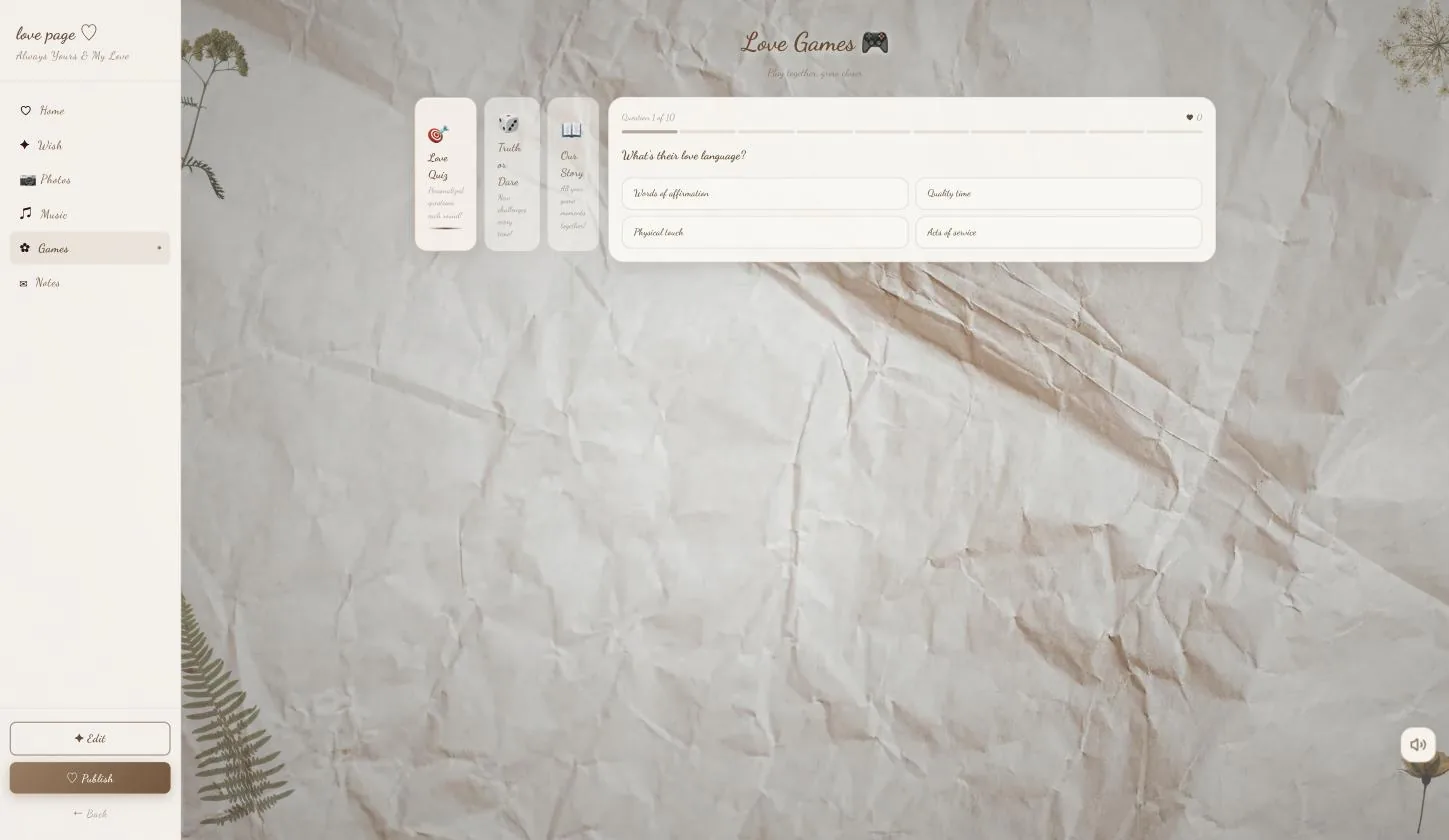
Games holds three, not one
Love Quiz — the questions you wrote. Truth or Dare. And Our Story, which walks your moments together. The quiz runs ten questions with a score.
Publish
Step 12.1
Publish appears once you have saved
Saving puts a Publish button in the rail under Edit. Until then there is nothing to publish.
Step 12.2
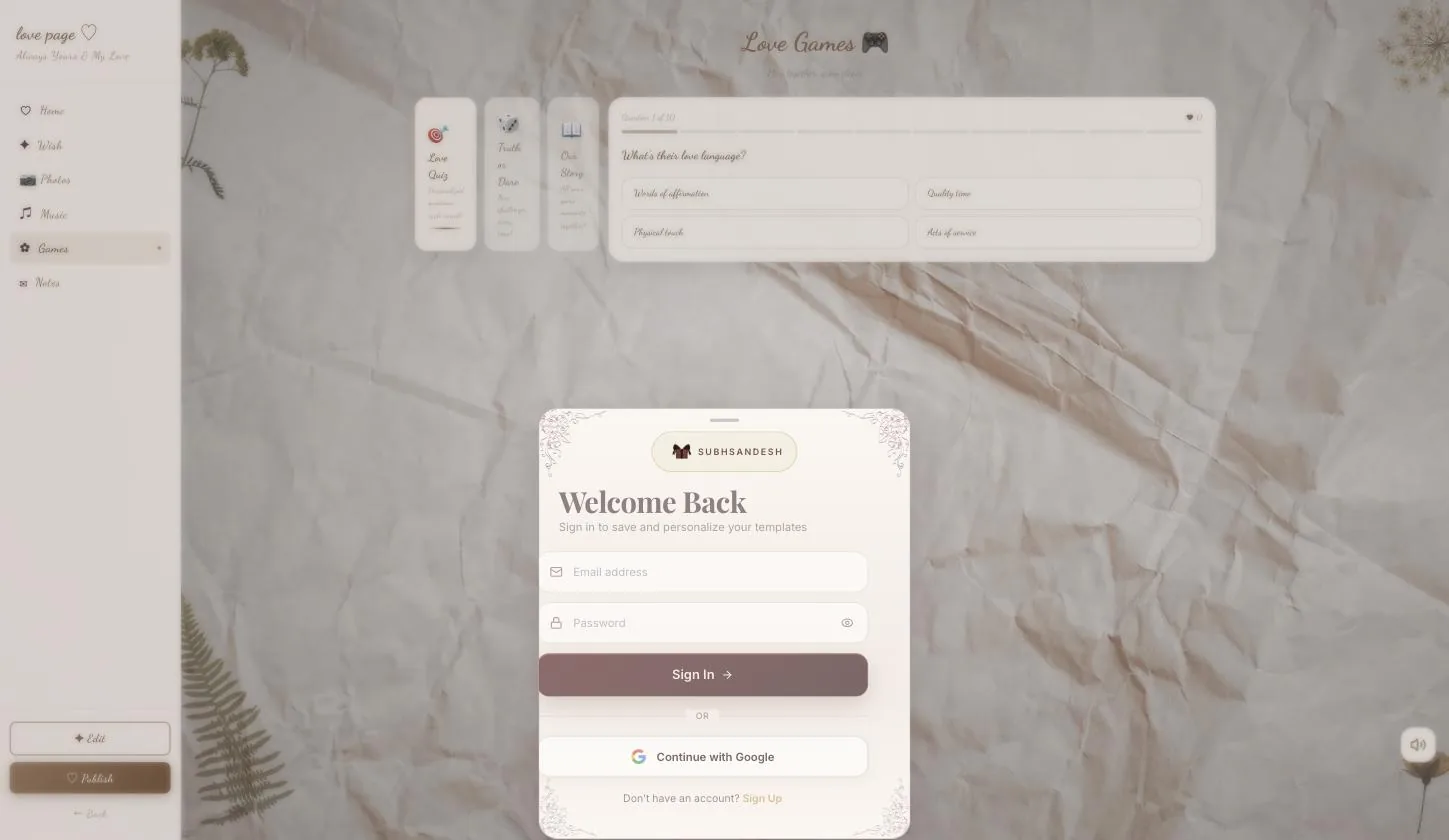
Signed out, you sign in here
The page publishes immediately afterwards — nothing you filled in is asked for twice.
On a phone the Google button is a full-page redirect. Let it come back on its own; closing the tab part-way means the publish never completes.
Your turn
About 10 minutes, and it is done.
You do not need an account to start — you are asked to sign in once, at the moment you publish.
Open Love PageQuestions
What people ask about this one
What is the difference between this and the Darling page?
Same nine-page wizard, genuinely different result. This one is a crumpled-paper board with four photos pinned to it as polaroids; Darling is a dark velvet page with a single photo in a circle and a live count of your time together. This one's Games room holds three games — Love Quiz, Truth or Dare and Our Story — and its home is the board itself. Pick on which one looks like her.
How many photos can I add in total?
Fourteen. Four go on the board as polaroids, and up to ten more into the gallery behind the Photos tab, each with its own love letter.
Do I have to fill in all nine pages?
No. Their name is the only required field, and the quiz arrives with three questions already written. Every other page can be skipped — the summary on the Save page tells you what you left empty.
Does saving publish it?
No. Save shows you the finished page in preview; a Publish button then appears in the rail. That is deliberate — it gives you a look at the whole thing before anyone else can see it.
How long does the whole thing take?
About ten minutes with the photos ready. The gallery letters and the quiz are where the time actually goes.
Keep going
Other guides
From the blog
Related reading
Written around the same occasion, if you want the words before the build.
Digital Gifts & Romance
Love Website for Boyfriend: The One With No Occasion On It
A love website for a boyfriend has no date on it and nothing that expires. Which of the two page shapes to bui…
Modern Romance
Never Have I Ever Questions for Couples, and How to Run the Round
Never have I ever is a disclosure game: the person asking reveals what they suspect, the person answering reve…
Modern Romance
Love Letter for Girlfriend in Marathi, Written to Be Kept
Six complete Marathi love letters for a girlfriend, each in Devanagari with a romanised version and an English…