

🪷 Product guide
Build a Raksha Bandhan page your brother performs himself
A sister fills this one in. You design the rakhi — two thread colours, a charm, one word engraved on the pendant — and itemise what he owes you. On his side he does the whole puja: tilak, mithai, aarti, then the thread, each as its own act. This guide walks every field and every screen he sees.
Watch
The whole build, end to end
This recording has no voiceover — every action is labelled on screen as it happens. Click a chapter to jump the video there. To read that step instead, use the ↓ beside it — the written walkthrough is below.
Step by step
The written walkthrough
Everything the video covers, in a form you can search, scan and keep open in another tab.
Open the builder
Step 1.1
Find the template and press Create
From Templates, open Happy Raksha Bandhan — the brother-side card, the one that promises he performs the ritual. Press Create.
This runs the opposite way to its sister-side pair. Here you design the rakhi and he ties it; there he writes the vow and she picks the rakhi. Neither is a recolour of the other.
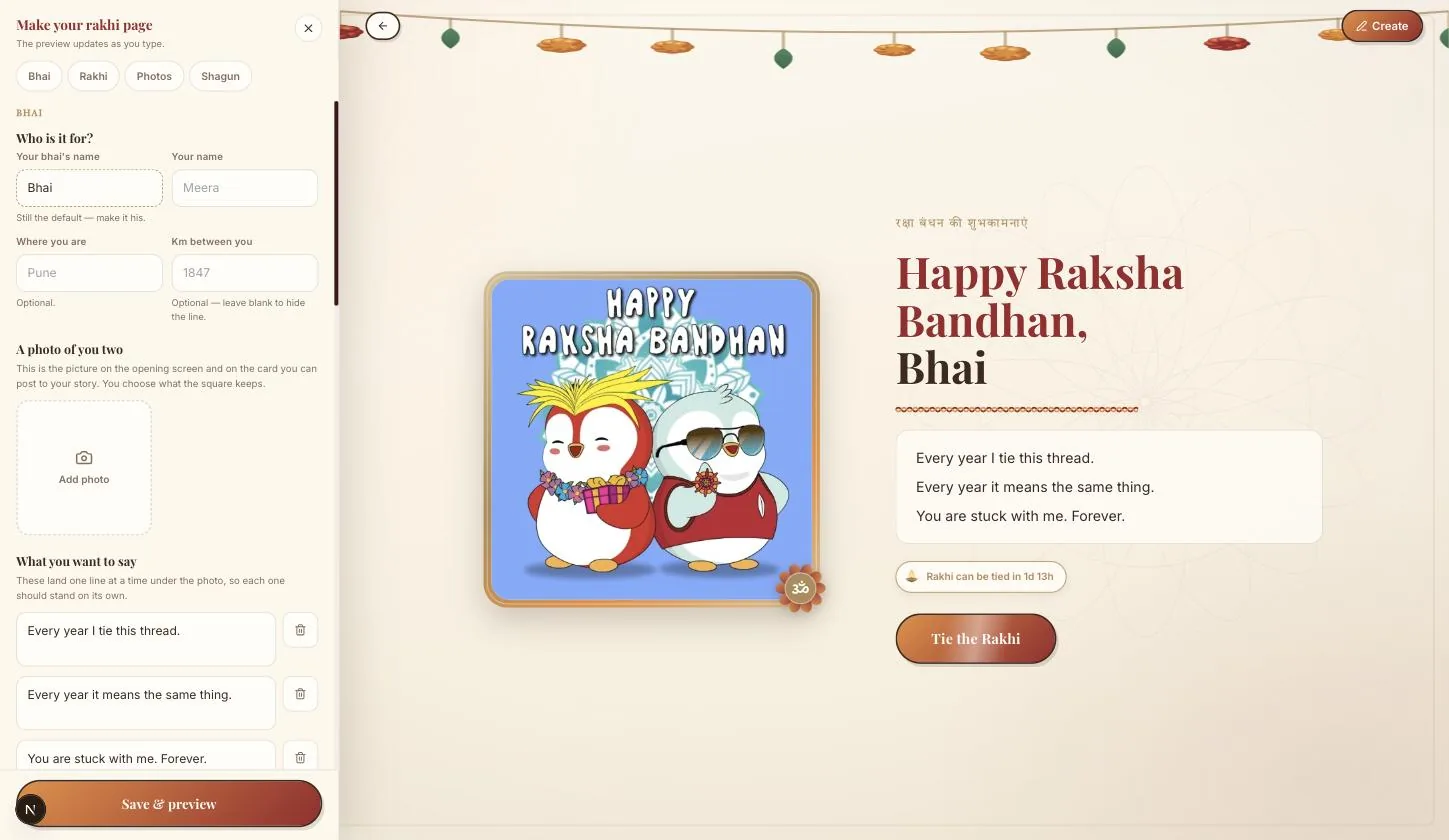
Names, city, and the distance between you
Step 2.1
Both names
His name greets him and previews the link; yours signs the page.
Step 2.2
City and kilometres apart
Optional, and the single field that does the most work on this template. If he has moved away, the finished page counts the distance out loud — which is the line that tends to get the reaction.
A photo of the two of you
Step 3.1
Add it and set the crop
One picture with both of you in it. The frame is round, so centre the two faces and drag to zoom until neither is clipped.
What you want to say
Step 4.1
Write the message
This sits under the photo and is the first thing he reads. Short is fine — the ledger further down does the heavy lifting.
Design the rakhi
The part with no equivalent on the other template. You are making the object he will tie, and he sees exactly what you chose.
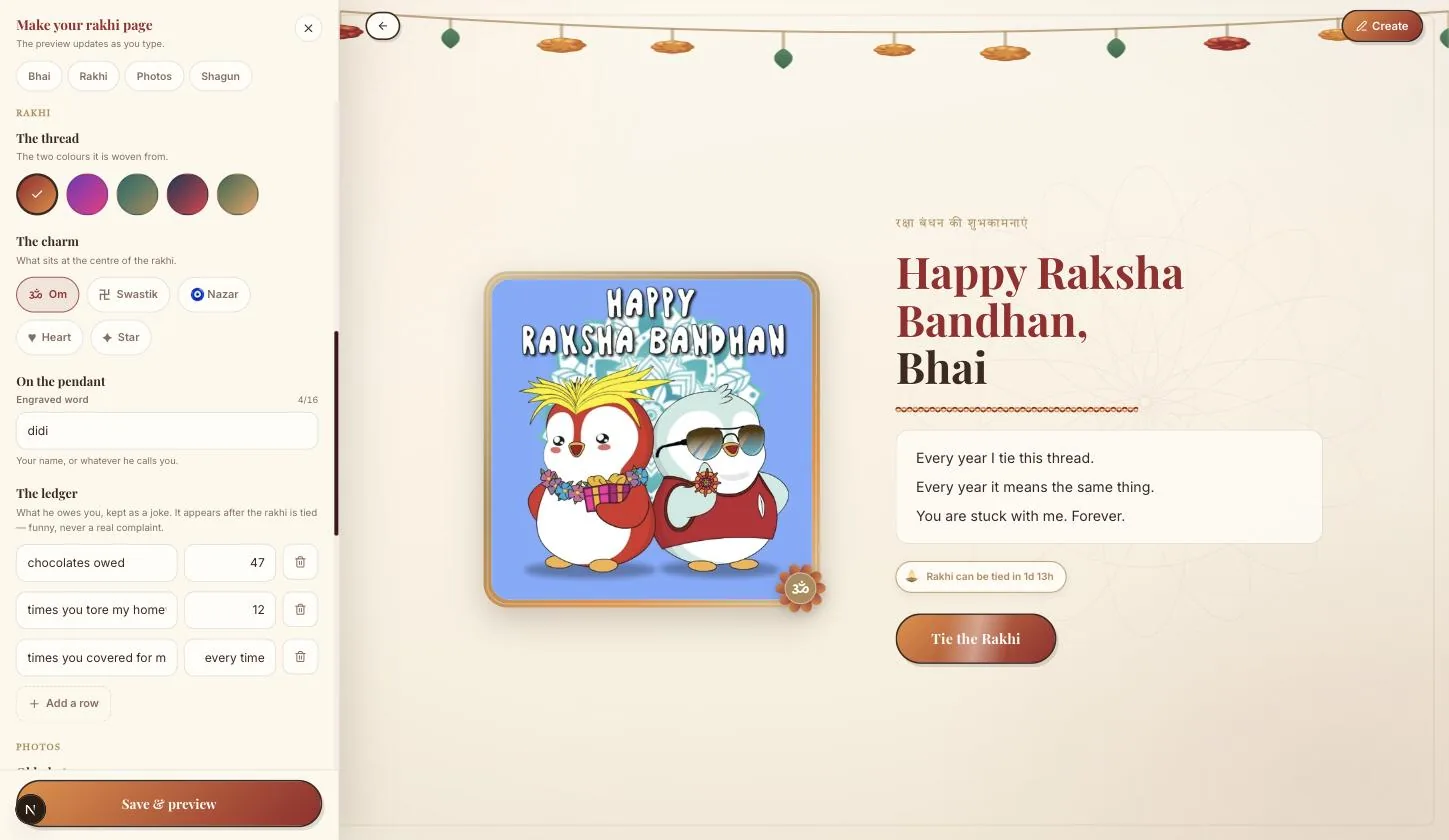
Step 5.1
Pick two thread colours
The two swatches twist together into the band. High-contrast pairs read better at phone size than two neighbouring shades.
Step 5.2
Choose the charm
Om, Swastik, Nazar, Heart or Star sits at the centre of the band.
The word on the pendant
Step 6.1
Engrave one word
One word only, engraved on the pendant — whatever you actually call him. It is small on screen, so a short word reads and a long one does not.
The ledger
Step 7.1
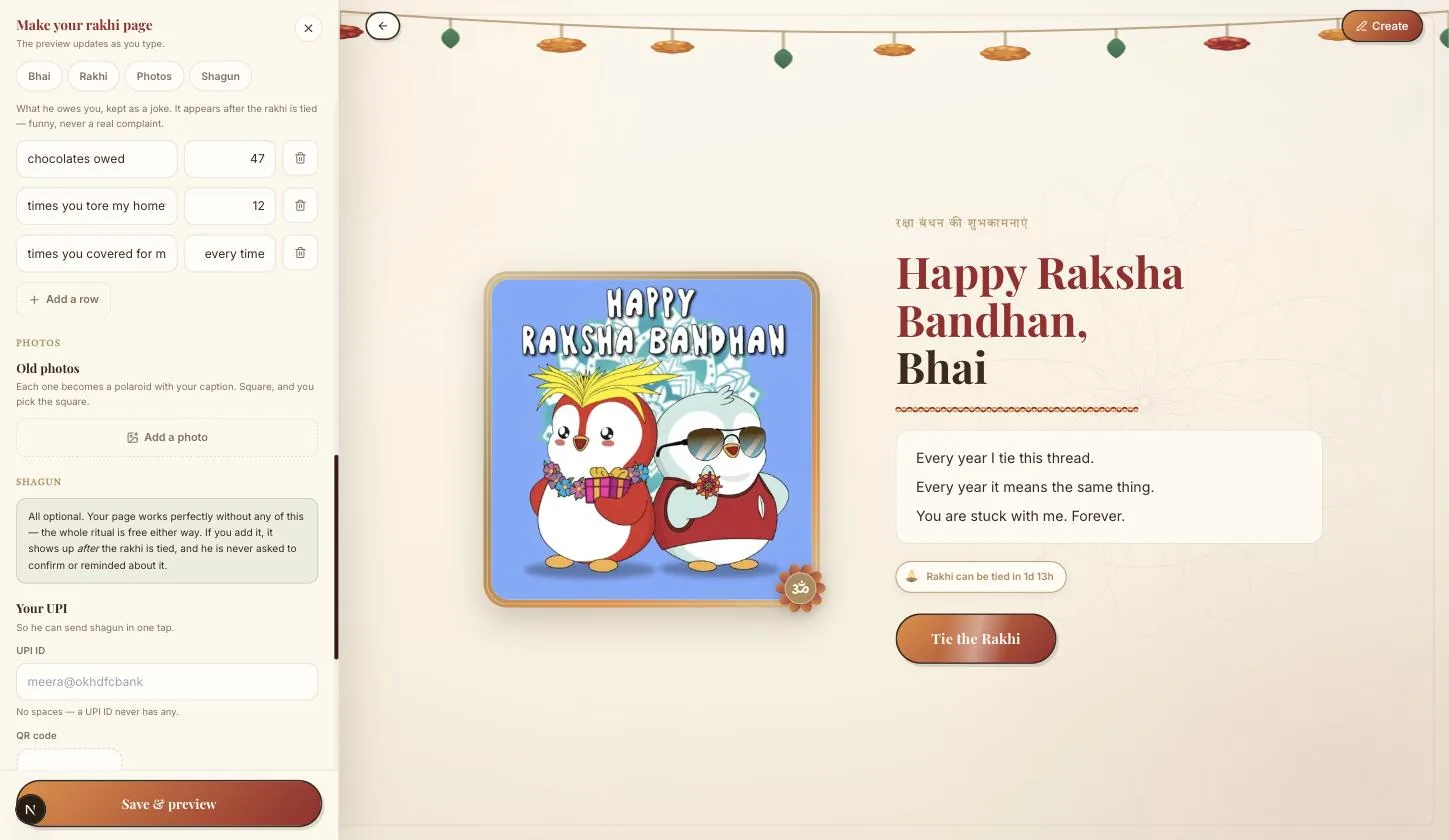
Itemise what he owes you
Line by line, with amounts. Specific and petty works; round numbers and general grievances do not.
Your old photos
Step 8.1
Add them with captions and years
The older and worse-quality, the better this section works. A blurry one from a decade ago beats a good one from last month.
The shagun, the QR, and the password
Step 9.1
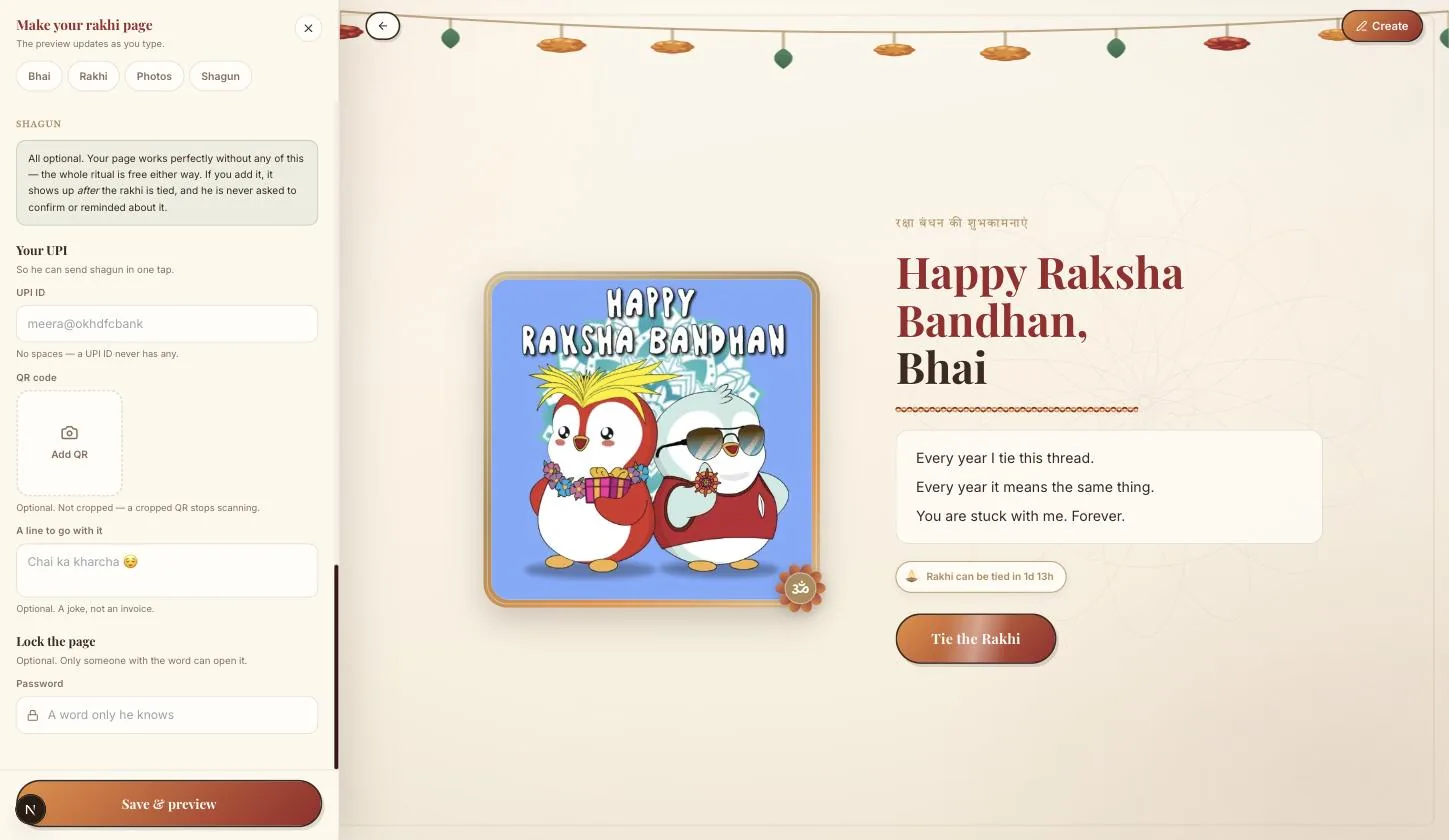
Your UPI id
The shagun travels from him to you on this template, so you are the payee and the UPI field is yours. He taps it and his own UPI app opens with you already filled in.
This is exactly why the sister-side template has no payment field: there the money moves the other way, and a QR encodes a payee. The asymmetry between the two templates is deliberate.
Step 9.2
The QR slot is optional
You can upload your own payment QR image here instead of, or alongside, the UPI id. Leave it empty and the UPI id alone does the job.
Step 9.3
Password, if you want one
Optional. Set it and the link asks for it before anything else loads.
Save and preview
Step 10.1
Press Save
Shows you his version, end to end, before anything is published. Go back and fix whatever looks wrong.
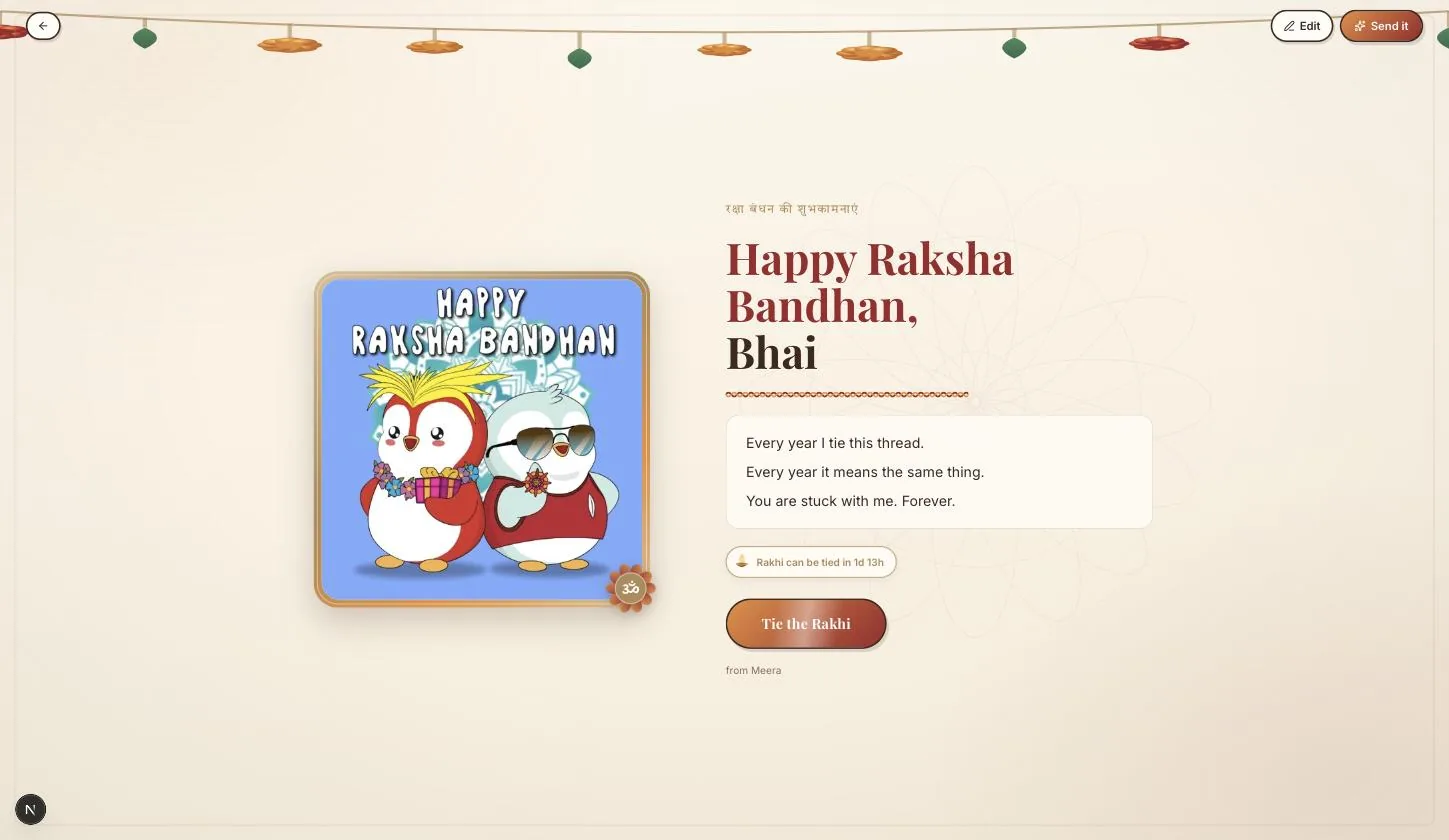
What he sees — the whole puja
Not a page he scrolls. Four separate acts, each taking two taps. The video runs it from 00:58 and is the fastest way to understand it.
Step 11.1
Tilak, then mithai, then aarti, then the thread
Each is its own screen and its own gesture. He cannot skip ahead — the order is the order of the actual ritual, which is the point.
Step 11.2
Then he asks where his gift is
You have already answered: your reply is the shagun screen, with your UPI id on it.
Step 11.3
And he writes his promise back
One reply, from him to you. It comes to you.
Publish and send
Step 12.1
Press Send it
Signed out, you sign in here and it publishes straight afterwards without asking you to re-enter anything.
On a phone the Google sign-in is a full-page redirect. Let it come back on its own — closing the tab part-way means the publish never happens.
Your turn
About 6 minutes, and it is done.
You do not need an account to start — you are asked to sign in once, at the moment you publish.
Open Happy Raksha BandhanQuestions
What people ask about this one
Why does this one have a UPI field when the sister template does not?
Because the shagun moves in opposite directions on the two templates. Here it goes from your brother to you, so you are the payee and a UPI id points the right way. On the sister-side template the money goes from the brother to the sister, so a payment code there would be asking her to pay him. Same festival, mirrored flow.
Do I have to upload a payment QR?
No, it is optional and most people leave it empty. The UPI id on its own opens his payment app with you already filled in.
Can he do the puja steps more than once?
He can reopen the link and go through it again. His reply is sent once.
What if he opens it on a laptop?
It works, but the puja is built around taps on a portrait screen. Send it somewhere he will open it on his phone.
Can I change the rakhi design after publishing?
Yes — Profile → My Creations → the card → Edit. The link is unchanged, so the next time he opens it he sees the new one.
Keep going
Other guides
From the blog
Related reading
Written around the same occasion, if you want the words before the build.
Indian Festivals
Happy Raksha Bandhan Wishes With Name: Where the Name Goes
Where the name goes in a Raksha Bandhan wish, and which name to use: opening address versus sign-off, bhai ver…
Indian Festivals
Write a Name on a Happy Raksha Bandhan Photo So It Stays Readable
Every name-on-photo generator ignores whether the result can actually be read. Contrast thresholds, cap height…
Indian Festivals
Happy Raksha Bandhan Replies to Sister, by What She Sent
A good Raksha Bandhan reply answers in the register she used, names the delay if you are late, and adds one de…