

🪔 Product guide
Build an animated shaadi card that opens like the real thing
A vertical animated card — ॐ शुभ विवाह across the top, the two names in script, the mandap below — wrapped in the same five-section guest site as its siblings. The builder is the wedding wizard with Indian defaults already in it, and its AI door will read a photograph of your printed shaadi card.
Watch
The whole build, end to end
This recording has no voiceover — every action is labelled on screen as it happens. Click a chapter to jump the video there. To read that step instead, use the ↓ beside it — the written walkthrough is below.
Step by step
The written walkthrough
Everything the video covers, in a form you can search, scan and keep open in another tab.
Open the builder
Step 1.1
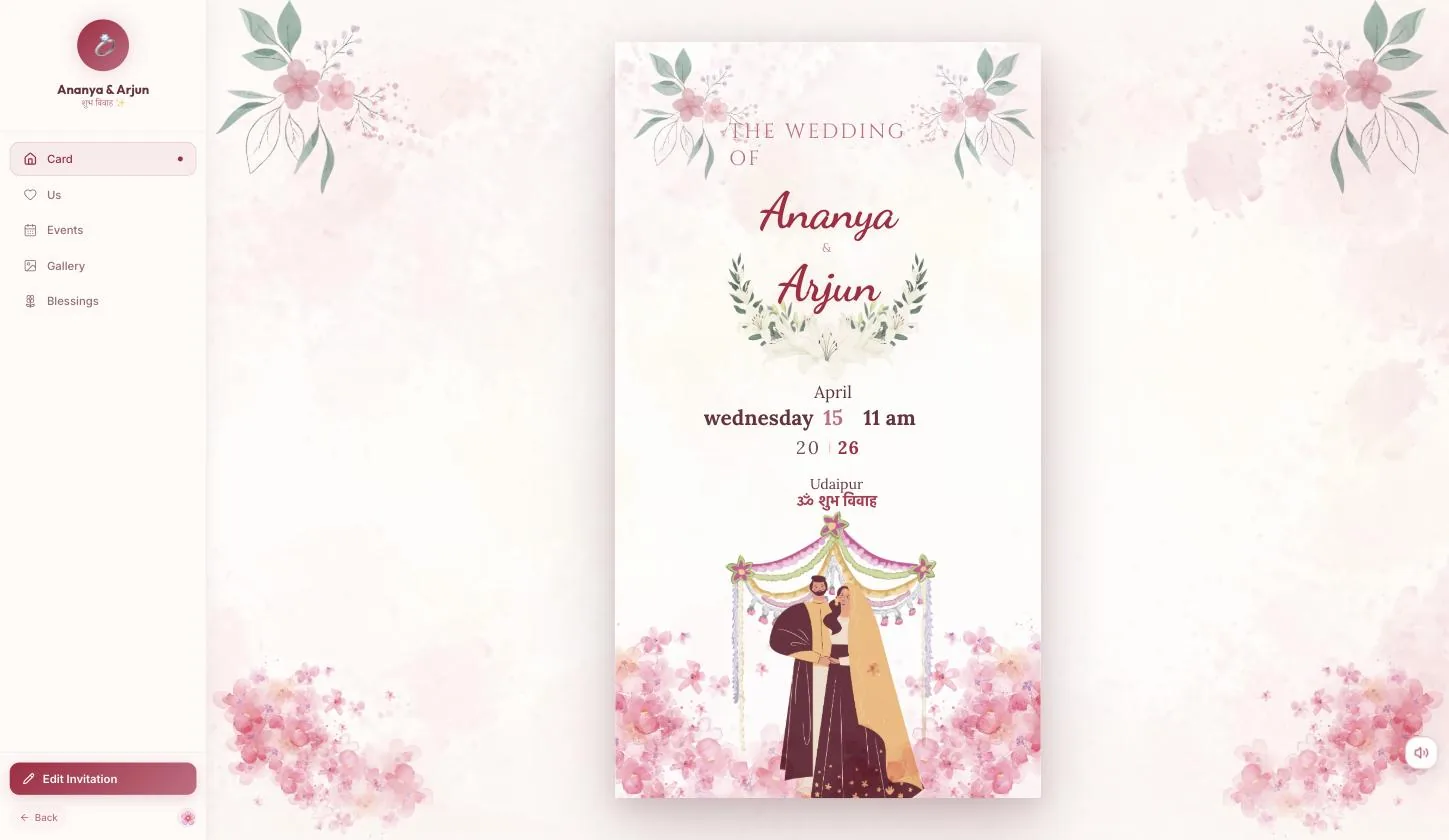
Edit Invitation, at the foot of the rail
The card animates in when the page loads — give it a few seconds before you reach for anything. Edit Invitation is under the five guest sections.
Step 1.2
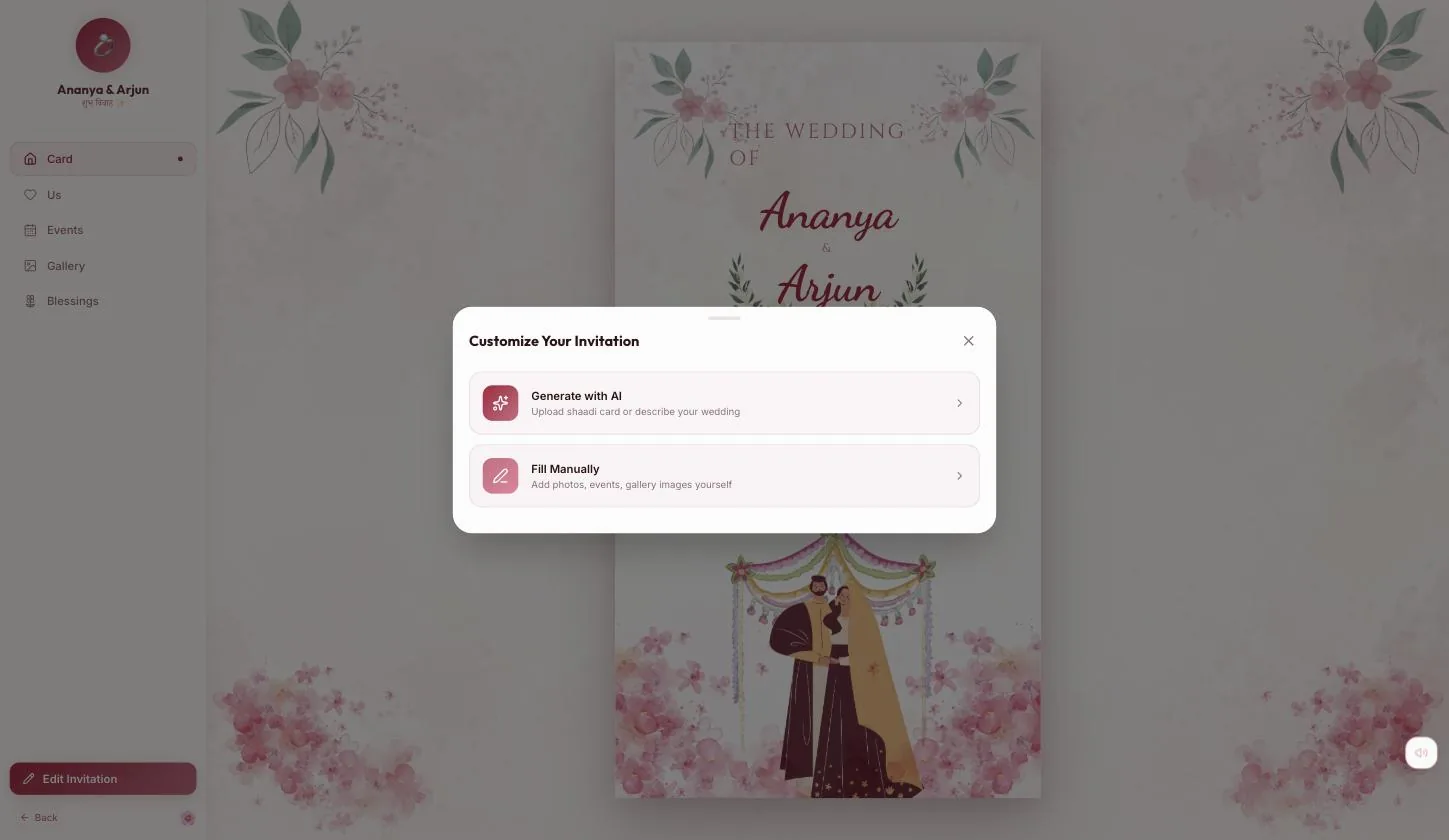
Its AI door reads a shaadi card
“Upload shaadi card or describe your wedding.” Photograph the printed card and the builder fills itself in from it — the same shortcut as the Christian template, worded for this one.
Step 1 — names and photos
Step 2.1
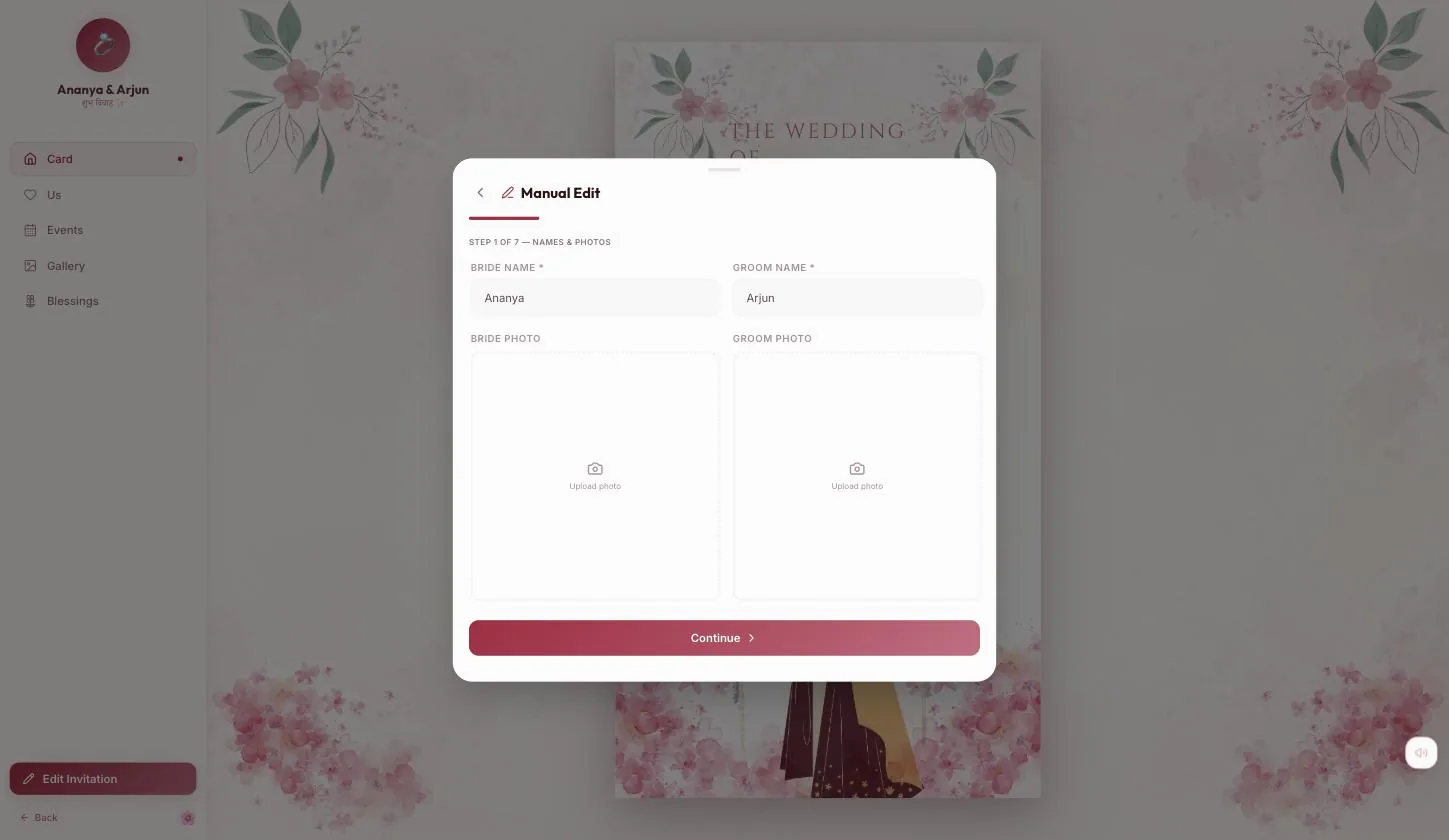
Both names, and a portrait each
The names are what the card sets in script, so how you write them here is how they are read. Photos are optional and feed the Us cards.
Steps 2 to 7 — the shared wizard
From here it is the same seven-step wizard all four wedding templates run: Details, Events, Gallery, Descriptions, Share photo, Password. The full walkthrough is in the Christian Wedding guide; what follows is what is specific to this one.
Step 3.1
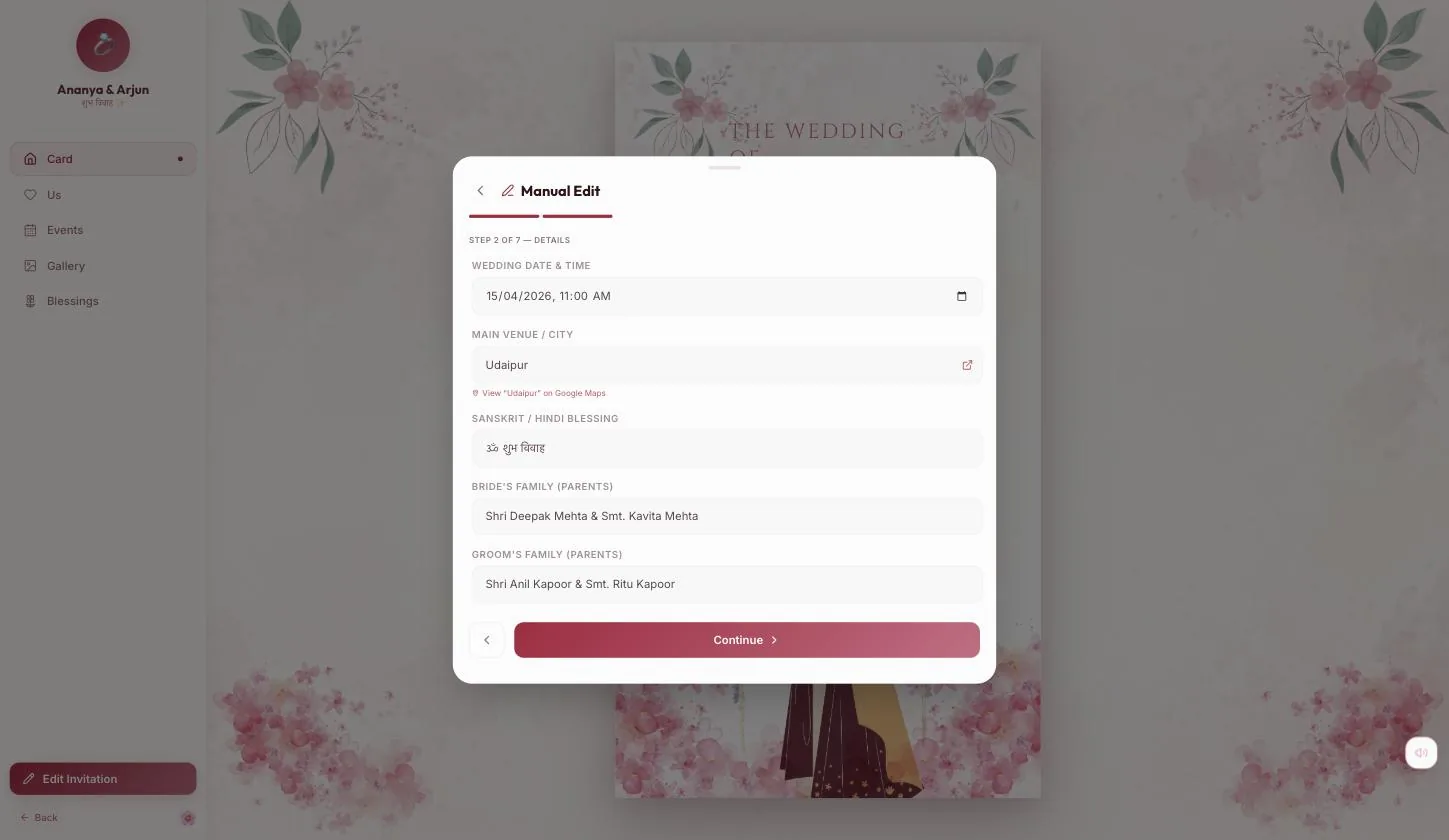
The defaults are already Indian
Step 2 arrives with ॐ शुभ विवाह in the blessing field and “Shri Deepak Mehta & Smt. Kavita Mehta” under bride's family. Swap the names and the wording holds up — you are editing a card rather than filling a form.
Step 3.2
The venue types into a live map link
Whatever you write appears under the field as a Google Maps link, and guests get it. Write it as an address, not as card copy.
Step 3.3
The share photo is the WhatsApp preview
Step 6. It is the image that unfurls when someone pastes the link into a chat, and skipping it sends a blank grey card to every guest.
Set & Preview
Step 4.1
The last step is the password, and it has a Skip
Set & Preview closes the wizard onto the finished card, and Publish joins Edit Invitation in the rail.
What the guest sees
Step 5.1
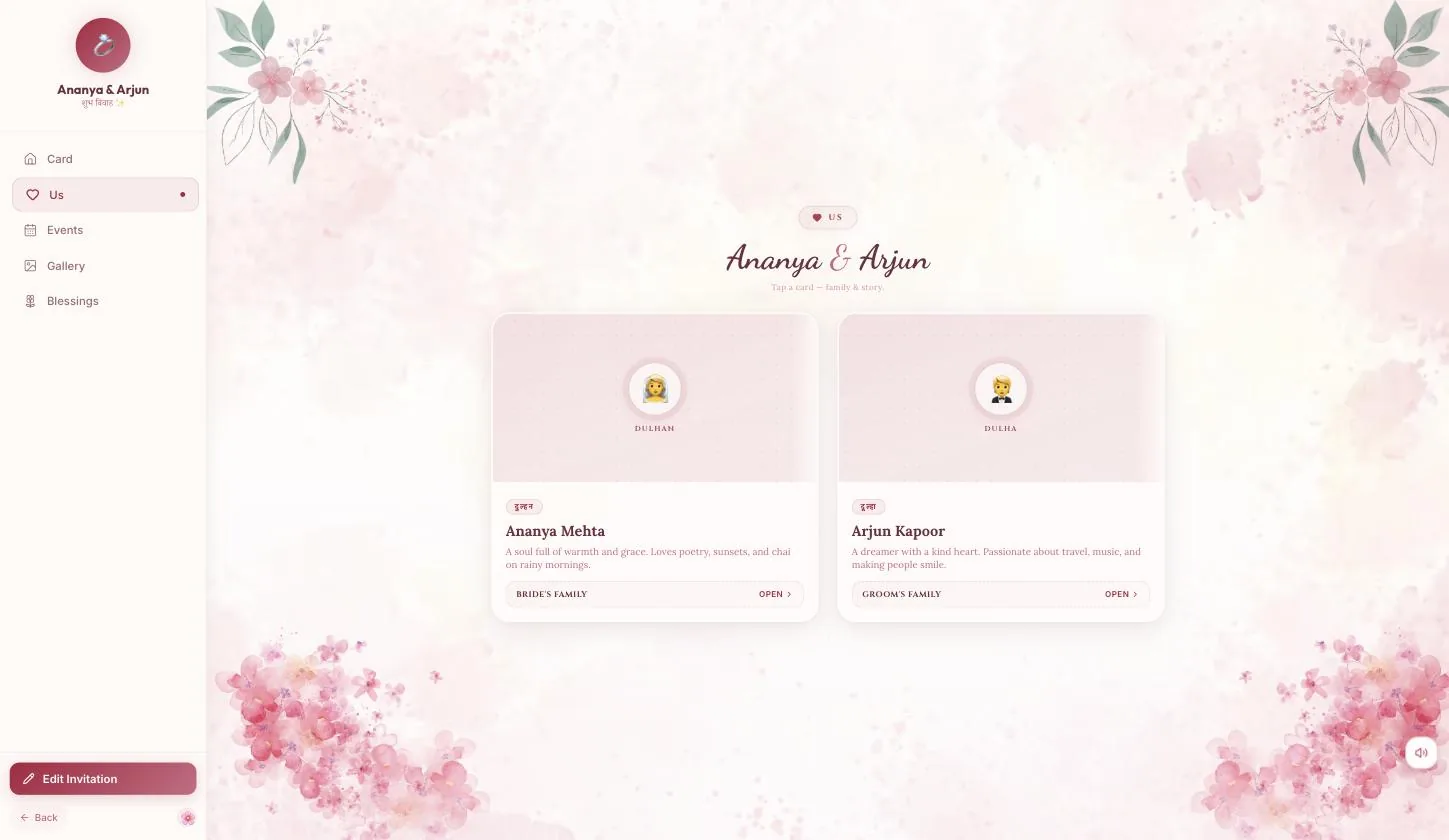
Us — dulhan and dulha, family behind a tap
Two cards with दुल्हन and दूल्हा chips, the descriptions you wrote, and a Bride's family / Groom's family row with Open on it. “Tap a card — family & story.” The parents you typed in step 2 are behind that.
Step 5.2
Then Events, Gallery and Blessings
Blessings is the guestbook: once published, guests can type a blessing or record a voice note on it.
Publish
Step 6.1
Publish, then Share
The rail button becomes Share and the sheet gives you the link, a QR and a printable card.
Your turn
About 9 minutes, and it is done.
You do not need an account to start — you are asked to sign in once, at the moment you publish.
Open Animated Shaadi CardQuestions
What people ask about this one
How is this different from the Royal Indian Wedding template?
Same wizard, different guest experience. This one is a light, animated card in the register of printed stationery. Royal Indian Wedding is dark and gold, opens on a Play & Enter music gate, and carries a countdown to the day.
Can it read my printed card?
Yes — Generate with AI offers exactly that. Photograph the card and it fills the builder in from the photo.
Why does the card take a moment to appear?
It animates in deliberately, which is the point of the template. Give it a few seconds before pressing anything.
Where do the parents' names show up?
In the Us section, behind the Bride's family and Groom's family rows on the two cards. Guests tap to open them.
Keep going