

👰 Product guide
A royal wedding invitation that opens with music and counts down
The dark, gold version of the wedding site. Guests land on a gate that asks whether to play the music before anything loads, then on a countdown to the day. They can switch the whole invitation between the dark royal look and a light one themselves. Behind Edit Invitation it is the same seven-step wizard as the other three.
Watch
The whole build, end to end
This recording has no voiceover — every action is labelled on screen as it happens. Click a chapter to jump the video there. To read that step instead, use the ↓ beside it — the written walkthrough is below.
Step by step
The written walkthrough
Everything the video covers, in a form you can search, scan and keep open in another tab.
The music gate
The thing to understand before you build anything: this invitation does not open straight onto the page.
Step 1.1
Play & Enter, or Skip
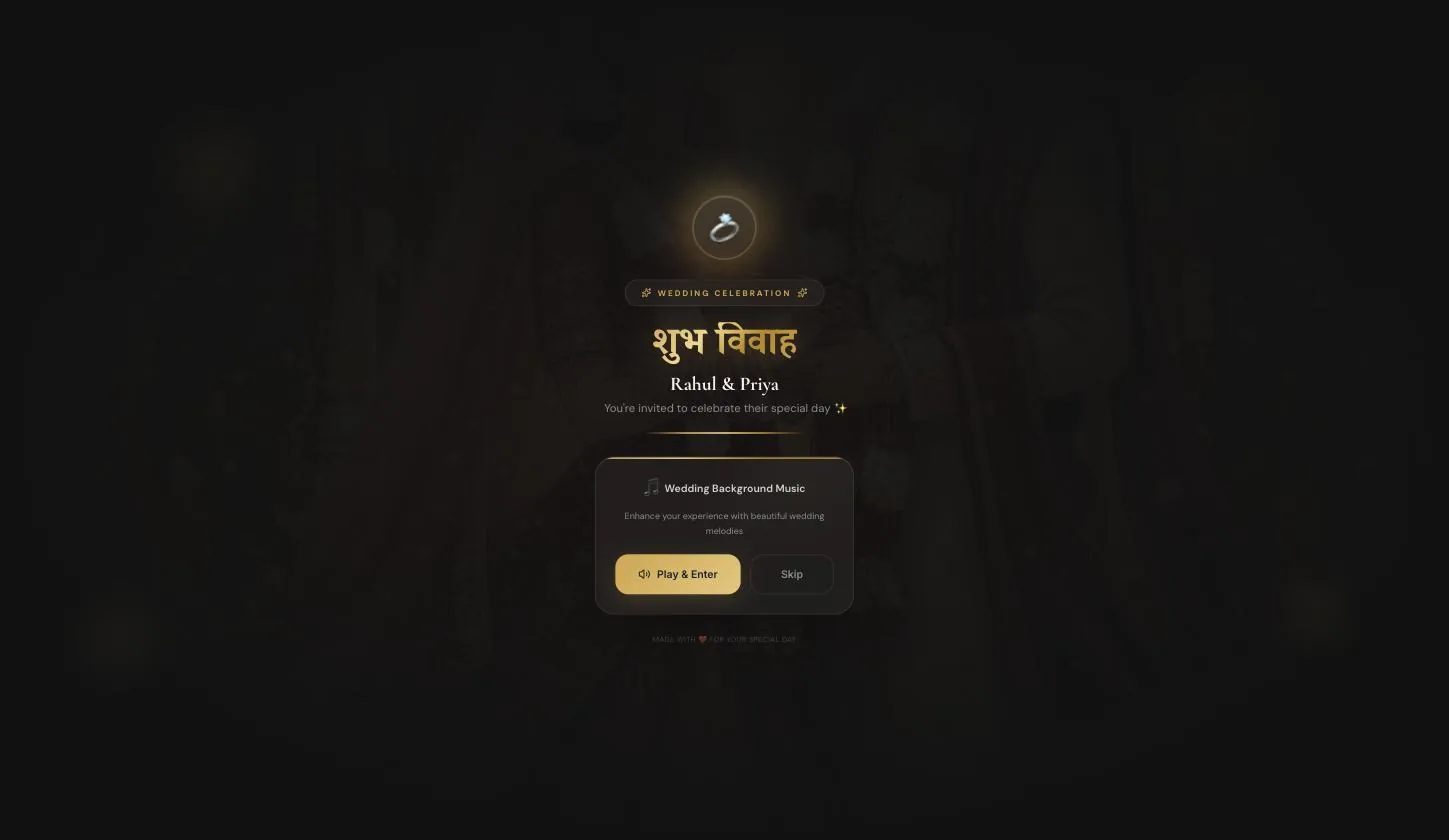
Guests get शुभ विवाह, your two names, and a panel — “Wedding Background Music · Enhance your experience with beautiful wedding melodies” — with Play & Enter and Skip. Nothing below loads until one of them is pressed.
This is why the invitation can have music at all. Browsers refuse to autoplay sound, so the gate turns a blocked autoplay into a choice the guest actually makes — and it is also the reason a guest who taps Skip sees a silent page and has not broken anything.
Open the builder
Step 2.1
Edit Invitation, under the rail
Same door as the other three. The rail here labels itself with emoji — 🏠 Home, 💑 Us, 📅 Events, 📷 Gallery, 🙏 Blessings.
Step 2.2
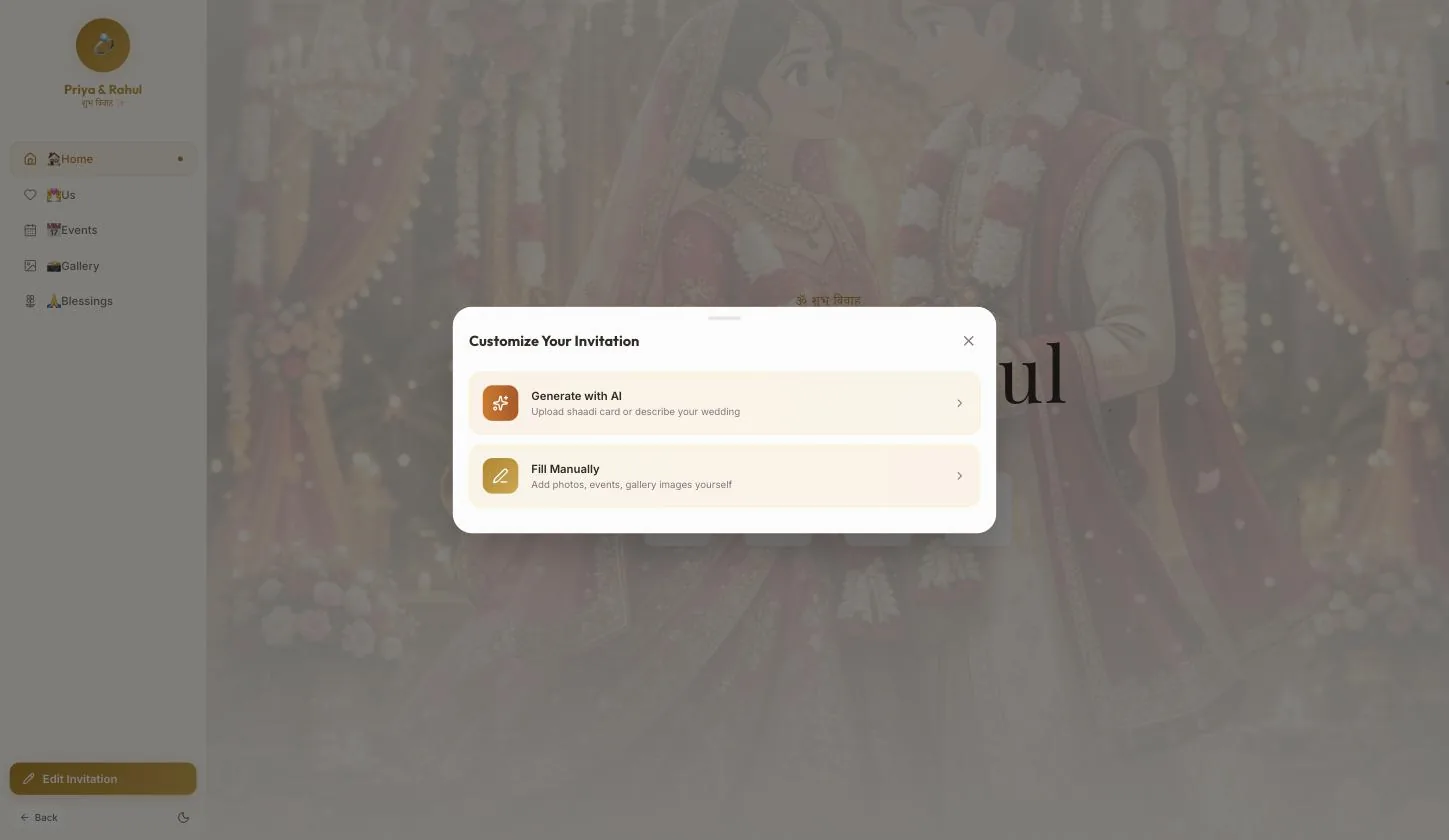
Two doors: AI, or by hand
“Upload shaadi card or describe your wedding” reads a photograph of a printed card. Fill Manually opens the seven-step wizard.
The seven-step wizard
Identical to the other three wedding templates: Names, Details, Events, Gallery, Descriptions, Share photo, Password, then Set & Preview. The step-by-step is in the Christian Wedding guide.
Step 3.1
The date drives the countdown
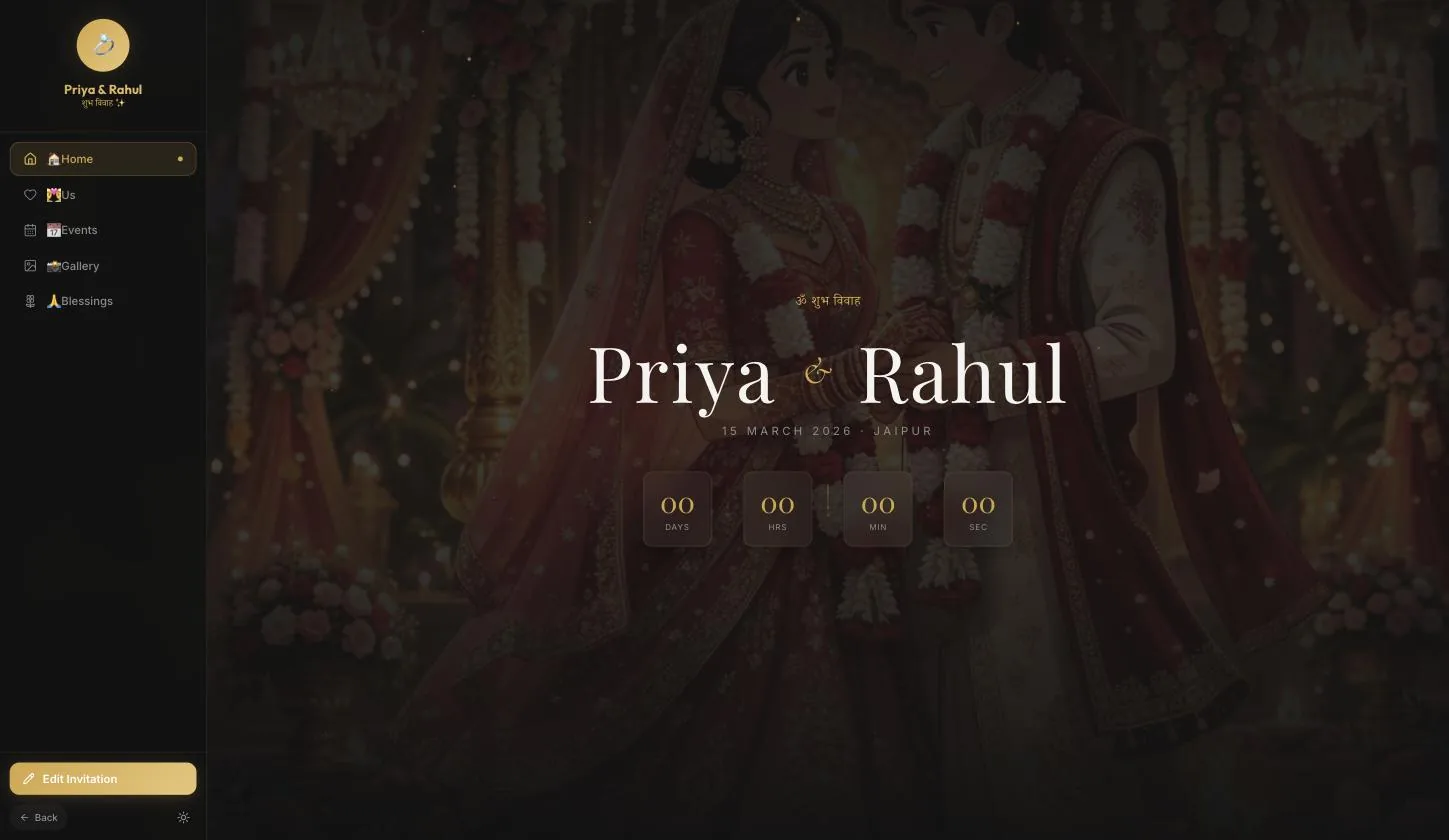
Step 2's wedding date and time is not decoration here — it feeds the days/hours/minutes/seconds counter on the guest's home screen. A wrong date is visible to everyone, ticking.
Step 3.2
The venue city shows beside the date
Home prints “15 MARCH 2026 · JAIPUR” under the names, taken from the venue field, and the field also produces the Google Maps link guests use.
Step 3.3
The share photo is the WhatsApp preview
Step 6, and the most-seen image in the whole build — it is what unfurls when the link is pasted into a chat.
Set & Preview
Step 4.1
Password or Skip, then Set & Preview
The wizard closes onto the finished invitation and Publish appears in the rail. The music gate comes back on the way in, so expect to pass it again.
What the guest sees
Step 5.1
Home — the countdown, in the dark
ॐ शुभ विवाह, the two names across the width, the date and city, and four counters ticking down. This is the template's whole argument.
Step 5.2
And the guest can turn the lights on
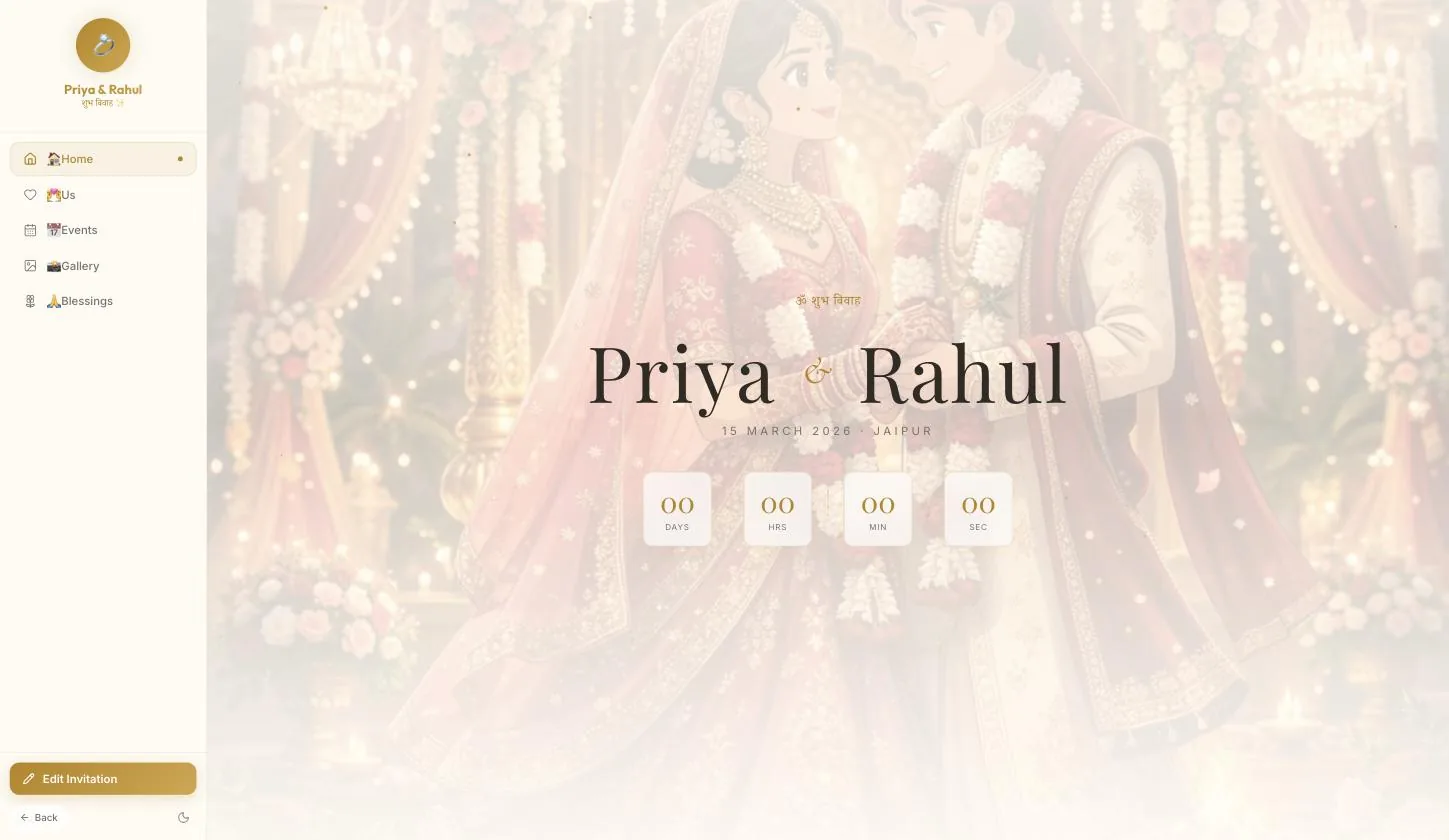
The small sun/moon control at the bottom-left of the rail switches the entire invitation to a light cream-and-gold treatment. It is theirs to press, not yours to set — worth knowing before someone tells you the invitation “looks wrong” on their phone.
Step 5.3
Then Us, Events, Gallery and Blessings
Blessings is the guestbook — once published, guests type a blessing or record a voice note there.
Publish
Step 6.1
Publish, then Share
The rail button becomes Share, and the sheet carries the link, the QR and the printable card.
Your turn
About 9 minutes, and it is done.
You do not need an account to start — you are asked to sign in once, at the moment you publish.
Open Royal Indian WeddingQuestions
What people ask about this one
Why does it ask about music before showing anything?
Browsers will not autoplay sound, so instead of failing silently the invitation asks. Play & Enter starts the music; Skip opens the same page without it. Nothing below the gate loads until a guest chooses.
A guest says the invitation looks light, not dark. Why?
They pressed the theme toggle at the bottom-left of the rail. It switches the whole invitation between the dark royal look and a cream-and-gold one, and it is the guest's choice rather than a setting you control.
Where does the countdown come from?
The wedding date and time on step 2 of the wizard. It ticks on every guest's screen, so it is the field to check twice.
How is this different from the Animated Shaadi Card?
Same builder, different evening. This one is dark and gold with a music gate and a countdown; the shaadi card is light and animates like printed stationery.
Keep going