
🥂 Product guide
A reception invitation with the venue on a real map
The wedding site narrowed to a single evening. There is no Events section because there is only one event; in its place is Location, a live map with a pin on the venue and directions a guest can follow. It also has the widest front door of the four: upload the card, describe it, or write it yourself.
Watch
The whole build, end to end
This recording has no voiceover — every action is labelled on screen as it happens. Click a chapter to jump the video there. To read that step instead, use the ↓ beside it — the written walkthrough is below.
Step by step
The written walkthrough
Everything the video covers, in a form you can search, scan and keep open in another tab.
The music gate
Step 1.1
Play & Enter, or Skip
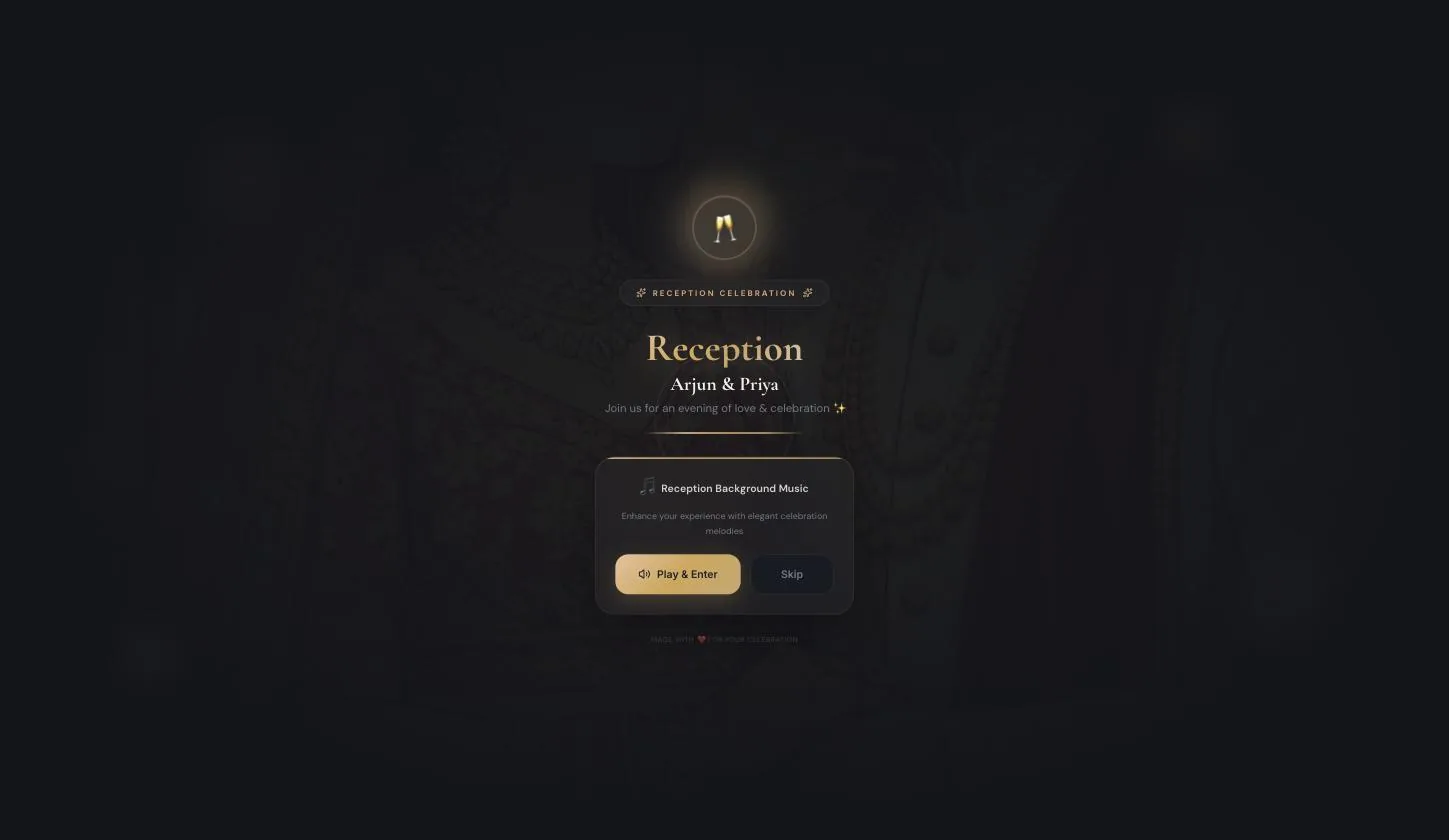
Like the Royal Indian Wedding template, the reception opens on a choice about music before it opens on anything else — “Reception Background Music · Enhance your experience with elegant celebration melodies.” Nothing below loads until a guest presses one.
Open the builder
Note the wording throughout: this template says Reception where the other three say Invitation. The rail button is Edit Reception.
Step 2.1
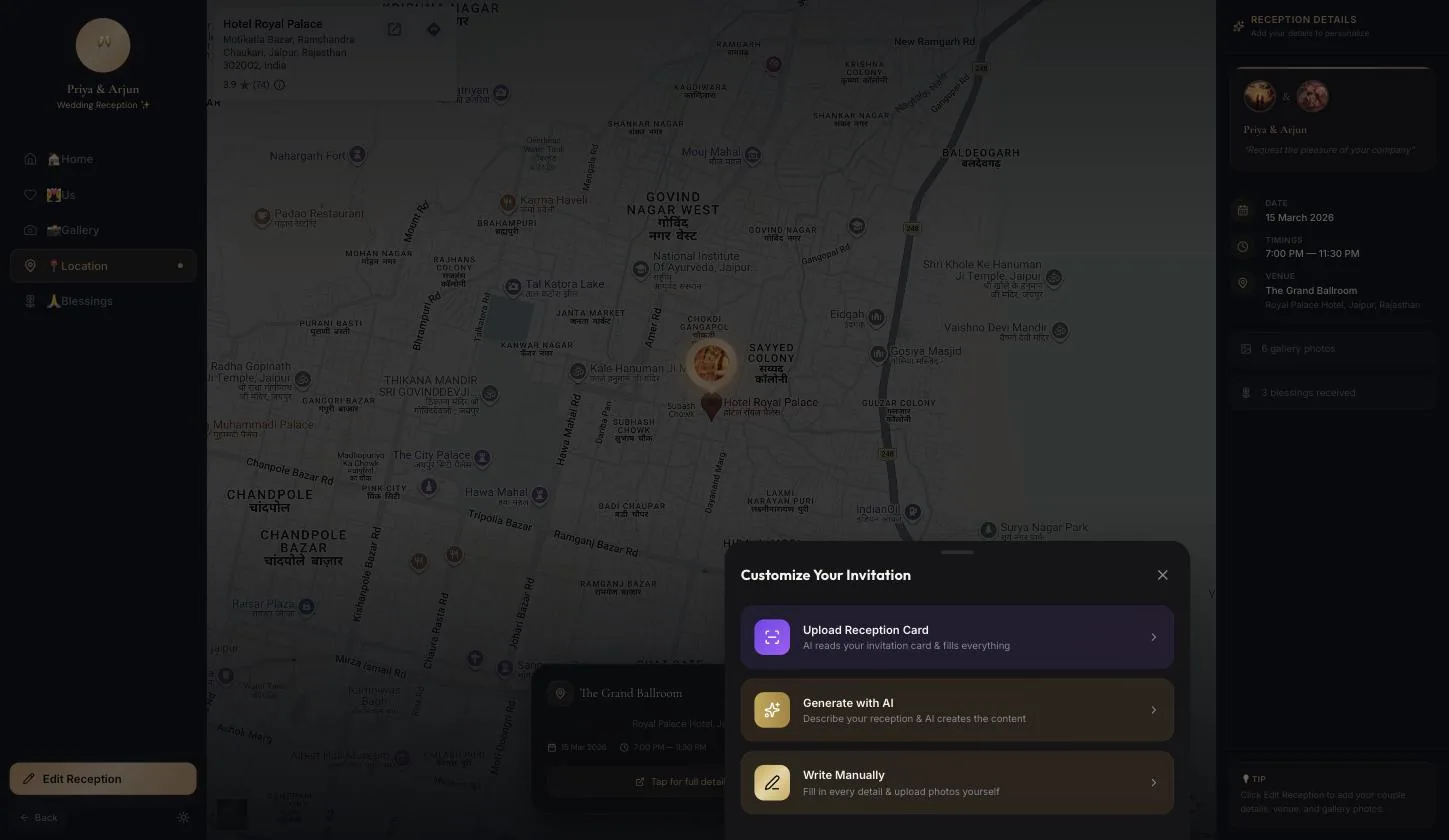
Three doors, not two
Upload Reception Card — “AI reads your invitation card & fills everything”. Generate with AI — “Describe your reception & AI creates the content”. Write Manually — “Fill in every detail & upload photos yourself”. The other three fold the first two together; this one names them separately.
If the reception card is already printed, the first door is the fastest route in the whole wedding set. Photograph it and check the result rather than typing anything.
The seven-step wizard
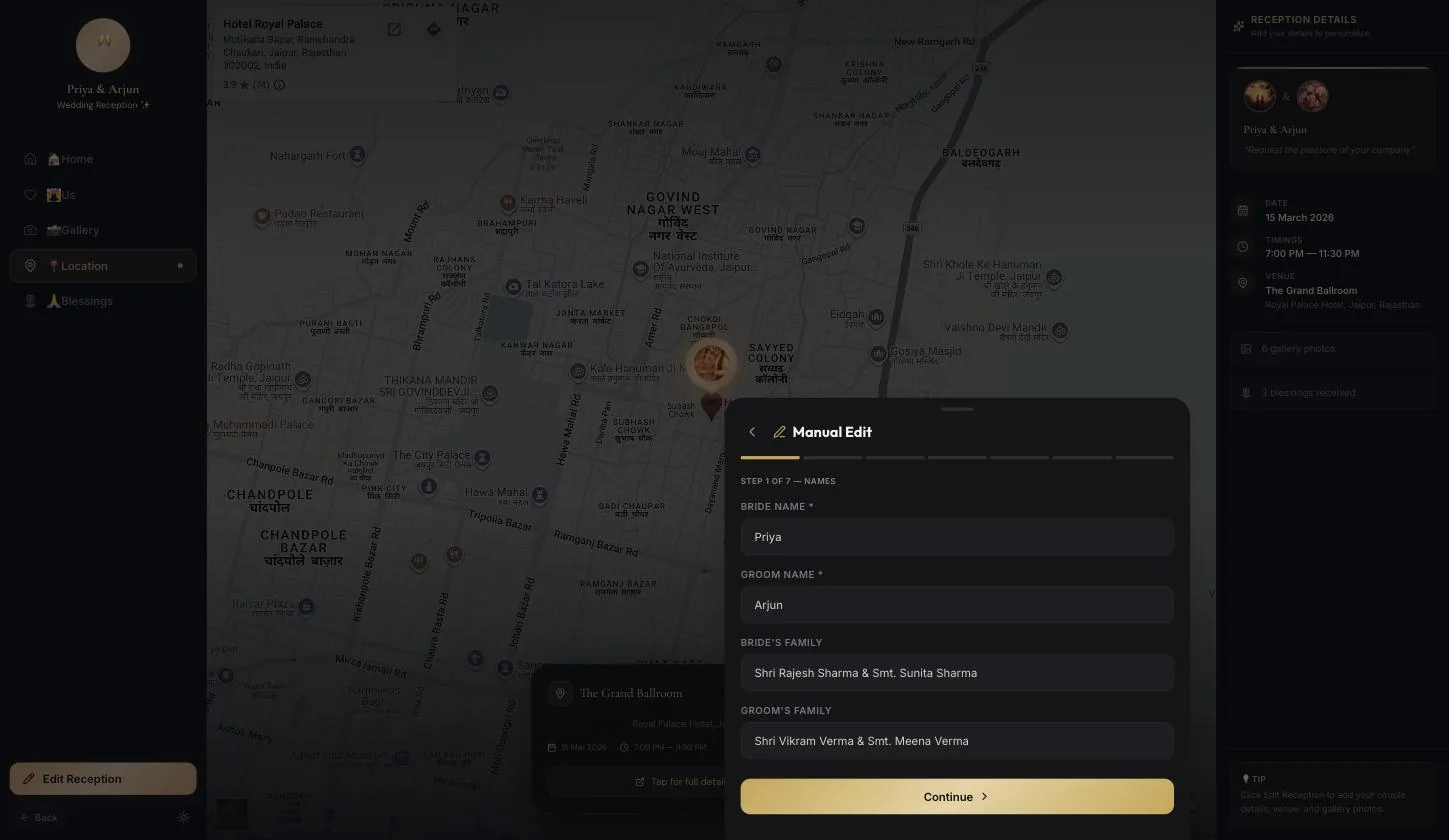
The same seven steps as its siblings, with reception wording — and the sheet opens as a panel down the right rather than in the middle. The full walkthrough is in the Christian Wedding guide.
Step 3.1
Step 1 is names and families, without photos
Bride, groom, and both families. The portraits move to the photos step later, which is the one place the four templates order things differently.
Step 3.2
The tagline is the line under the names
“Request the pleasure of your company” by default. It is the only piece of card language in the build and it is worth writing yourself.
Step 3.3
Date, timings and venue drive the whole page
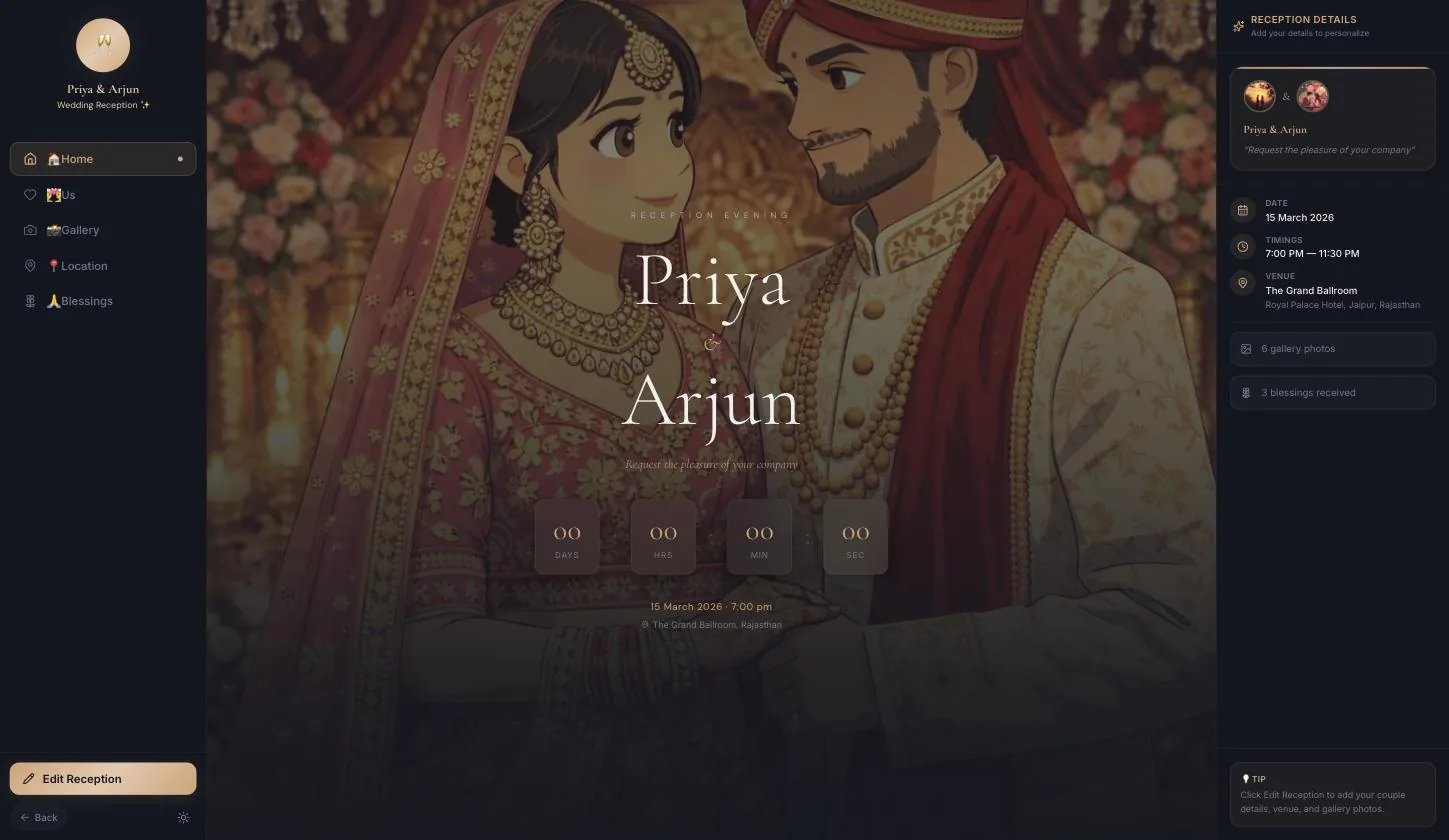
The reception date and time feed the countdown; the venue feeds the details panel, the line under the countdown, and the map in the Location section. One field, three places.
Set & Preview
Step 4.1
Password or Skip, then Set & Preview
The wizard closes onto the finished reception page and Publish appears in the rail. Expect the music gate again on the way back in.
What the guest sees
Home, Us, Gallery, Location, Blessings. No Events — there is one event, and it is the page.
Step 5.1
Home, plus a details panel the others do not have
The countdown and the couple's names, and down the right: date, timings, venue, a gallery count and a blessings count. Before you have filled it in, that panel also carries a tip — “Click Edit Reception to add your couple details, venue, and gallery photos.”
Step 5.2
Blessings works as it does everywhere else
A guestbook that takes typed messages and voice notes, live once the page is published. The panel on Home counts what has arrived.
Location — the section only this template has
Step 6.1
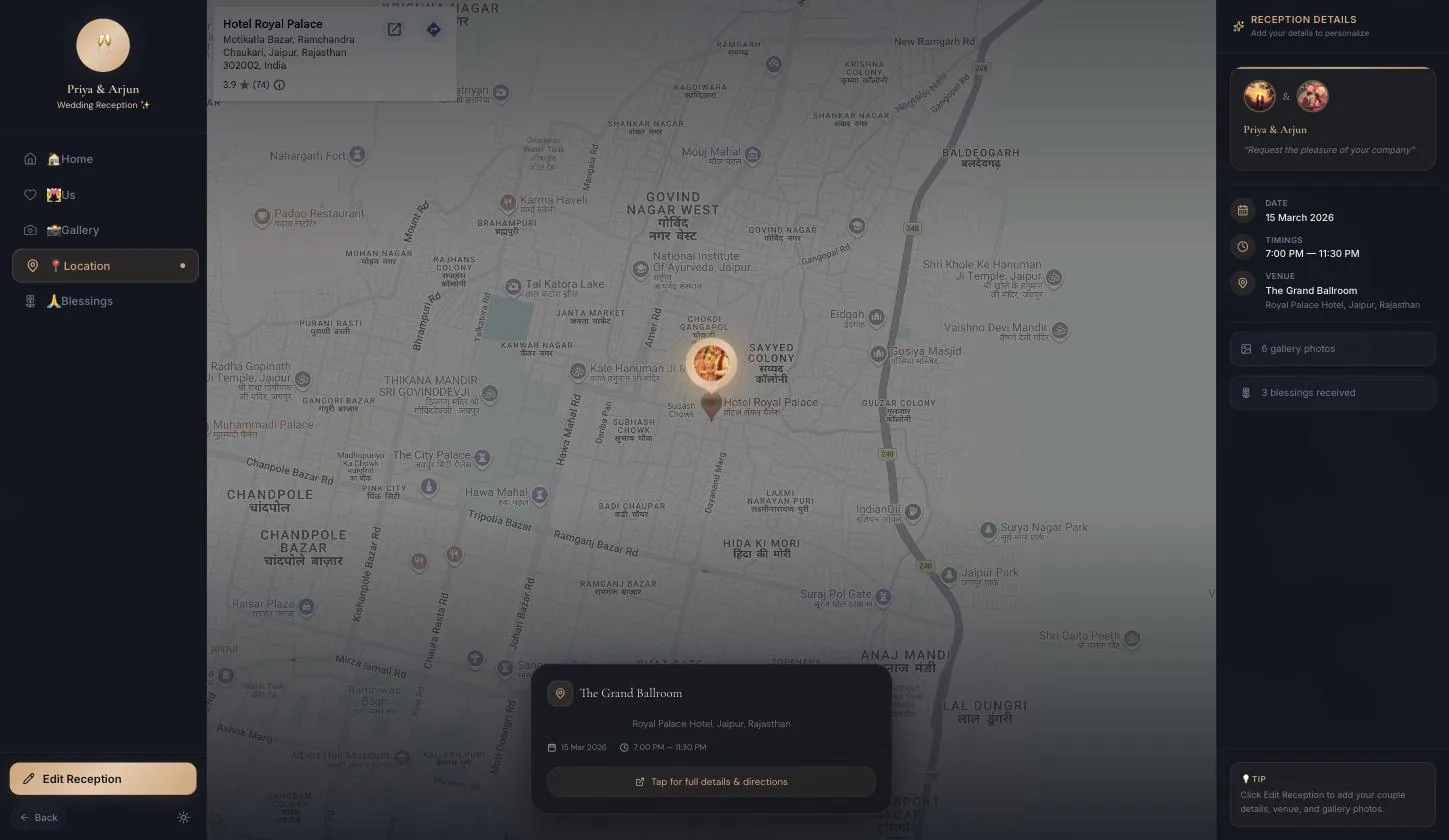
A real map, a pin, and directions
Not a static image: an interactive map centred on the venue, with the venue's own listing card and a directions control. Underneath, a panel repeats the venue, the date and the timings with “Tap for full details & directions”.
This is why the venue field deserves care. Write the address as you would type it into a map — the hotel's actual name and city — rather than as it reads on a card, or the pin lands somewhere approximate and a guest drives there.
Publish
Step 7.1
Publish, then Share
The rail button becomes Share and the sheet carries the link, the QR and the printable card.
Your turn
About 8 minutes, and it is done.
You do not need an account to start — you are asked to sign in once, at the moment you publish.
Open ReceptionQuestions
What people ask about this one
Why is there no Events section?
Because a reception is one event. The slot in the rail goes to Location instead — a live map with the venue pinned and directions from it.
Is the map real?
Yes. It is an interactive map centred on whatever you typed into the venue field, with the venue's listing and a directions control. Write the address as you would type it into a map rather than as card copy.
Why does this one have three ways to start?
It splits what the other templates combine: Upload Reception Card reads a photo of your printed card, Generate with AI writes from a description, and Write Manually opens the wizard. Same seven steps behind all three.
What is the panel down the right of the home screen?
A summary the other three templates do not have — date, timings, venue, how many gallery photos and how many blessings have arrived. Before you fill it in, it also carries the tip pointing you at Edit Reception.
Does it have the music gate too?
Yes, the same one as the Royal Indian Wedding template. Guests choose Play & Enter or Skip before anything below loads.
Keep going
Other guides
From the blog
Related reading
Written around the same occasion, if you want the words before the build.